Make a film · Chapter 12
Animatic
The animatic is the film before it is shot: every frame on a timeline at its planned length, with scratch voice-over and temp music. You and your client can judge the timing and the story before any video credit is spent.
Watch the animaticLink to Watch the animatic
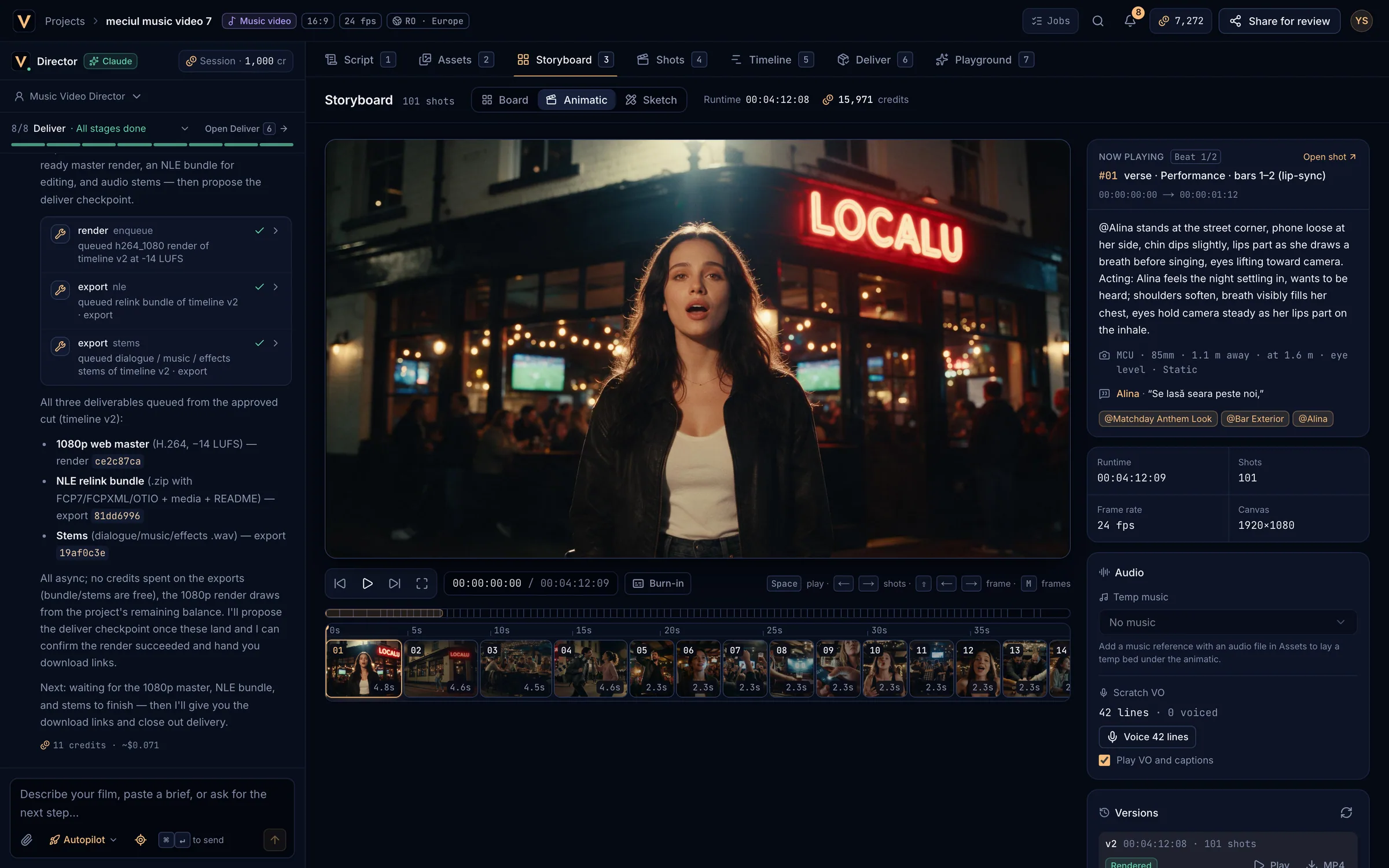
- The player.
- Transport, timecode and Burn-in.
- The filmstrip: click to jump.
- Now playing: the beat’s action, camera, lines and references.
- Audio: temp music and scratch VO.
- Switch the Storyboard to Animatic (or press
Mto cycle the modes). - Frames play at their planned durations with a panel per beat. A shot without a frame plays as a “no frame” slate; Render previz or Draw sketches fills it.
- Burn-in overlays the timecode and shot name. Rendered MP4s always carry it.
- Open shot in Now playing jumps to the shot in the Board.
| Space | Play / pause |
| ←→ | Previous / next shot |
| ⇧←→ | One frame back / forward |
| HomeEnd | Start / end |
| M | Next Storyboard mode |
Sound for the animaticLink to Sound for the animatic
- Temp music: choose a music reference from the Asset Bible (an asset with an audio file) and set the Music level. It fades in and out and dips under the VO. Music videos play the song automatically.
- Scratch VO: Voice N lines speaks every VO and dialogue line in the cast voices. It is metered and starts straight away; the toast shows the credits.
- Play VO and captions turns the voice and its captions on or off in the player.
Versions and MP4 rendersLink to Versions and MP4 renders
- Save animatic version freezes the current cut as a numbered version (free).
- Render MP4 renders the cut as it plays now, with burn-in, VO and music, as a new version. It is free and takes about a minute per minute of film.
- Each version row shows Saved, Queued, Rendering, Rendered or Failed, with Preview, Play, MP4 (download) or Retry.
- Preview plays a saved version in the player; Back to the live board returns.
Client sign-offLink to Client sign-off
Share the animatic with a review link from Deliver. When the client approves it there, the animatic checkpoint is approved and the render plan can start. Request changes sends their note back to the Director.