Make a film · Chapter 10
Storyboard
The Storyboard tab is where the film is planned shot by shot, before any video credit is spent. It has three modes: **Board** for the shots, **Animatic** to watch them timed, and **Sketch** for a pencil board to share.
The boardLink to The board
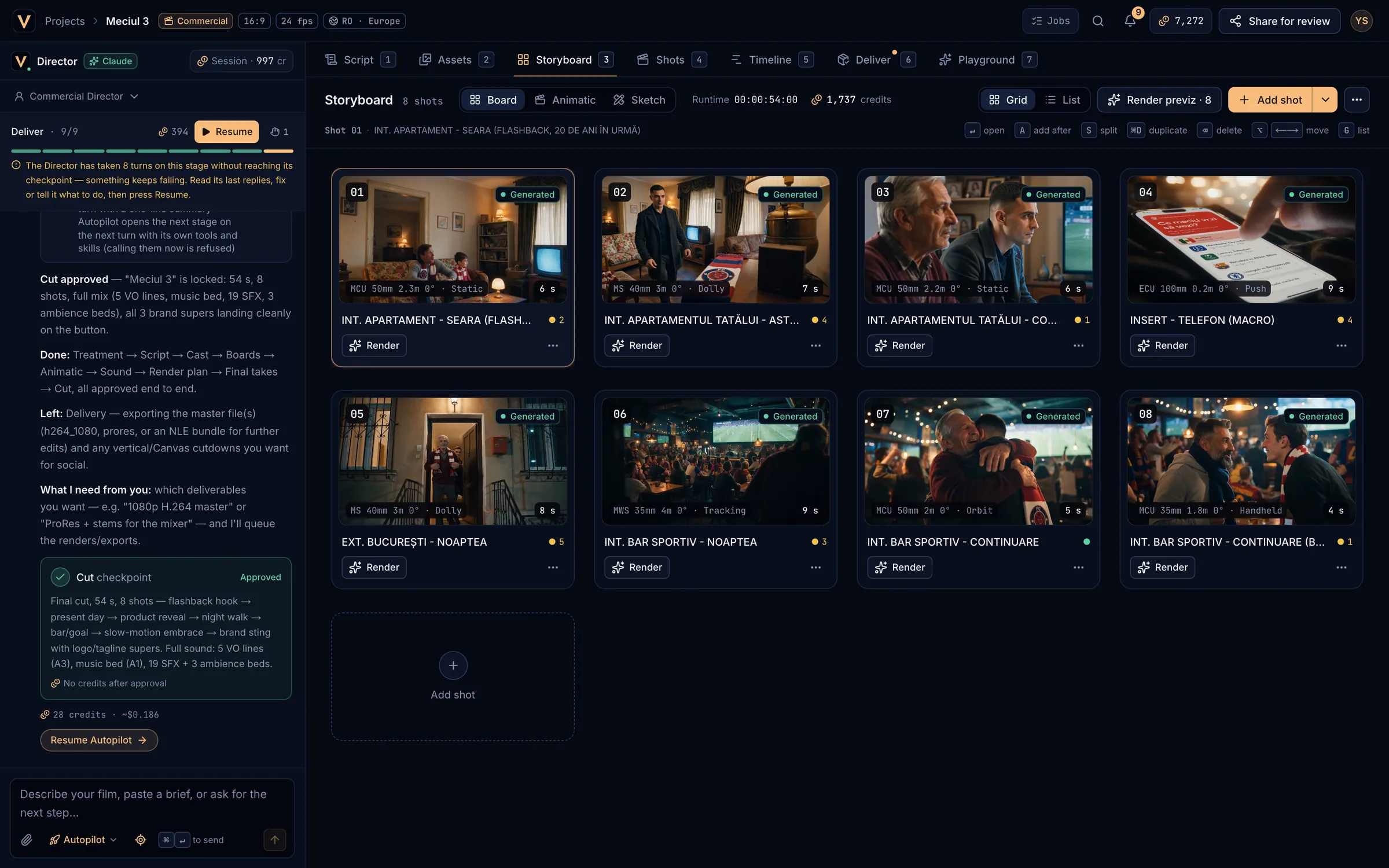
- Board, Animatic and Sketch modes.
- Runtime and the credit estimate for the final takes.
- Grid / List view.
- Add shot and more ways to add shots.
- Keyboard hints for the selected shot.
- A shot card: number, status, camera, length, title and lint dot.
- Runtime adds up every shot. With a target length, Target shows whether you are on target, over (+) or under (−).
- The credit total is an estimate for the final video takes of the shots that have a model. It spends nothing.
- Render previz · N renders a realistic frame for every shot without one (quoted first). See Sketches and previz frames.
- List view shows In, Out, length, first segment, model, quote and status per shot: handy for long boards.
Shot cardsLink to Shot cards
- The image is the best one the shot has: the take in the cut, else the previz frame, else the sketch, else a placeholder still.
- The camera strip reads like a camera report, for example MCU 50mm 2.3m 0° · Static: shot size (EWS, WS, MWS, MS, MCU, CU, ECU, INSERT), lens, distance, angle and move.
- Status: Draft, Boarded, Animatic, Generating, Generated, Approved or Locked (greyed).
- The coloured dot is the prompt check: green passes, amber has warnings, red has errors; hover it for the top issue.
- Render / Approve handles the shot’s previz frame; N takes compares them; the … menu has Annotate…, Fix this area…, Re-render… and Delete shot….
- Drag a card to reorder. Hover between two cards for a + that inserts a shot there.
Add, split and reorder shotsLink to Add, split and reorder shots
- Add shot (
A) adds a blank 3 s shot after the selected one and opens it. - The arrow next to it offers Paste a shot prompt… and Add shots from the script… (a first pass from the scenes; nothing is replaced).
- Select several shots with
⇧-click (range),⌘-click (one more) or⌘A, then delete them together. Locked, approved and generating shots are kept.
| ←→↑↓ | Select a shot |
| ↵ | Open the selected shot |
| A | Add a shot after the selected one |
| S | Split the selected shot |
| ⌘D | Duplicate |
| ⌫ | Delete |
| ⌥←→ | Move the shot (⌥↑↓ in List view) |
| G | Switch Grid / List |
| M | Open the shot’s Model tab |
| ⌘A | Select all |
| Esc | Clear the selection |
The shot editorLink to The shot editor
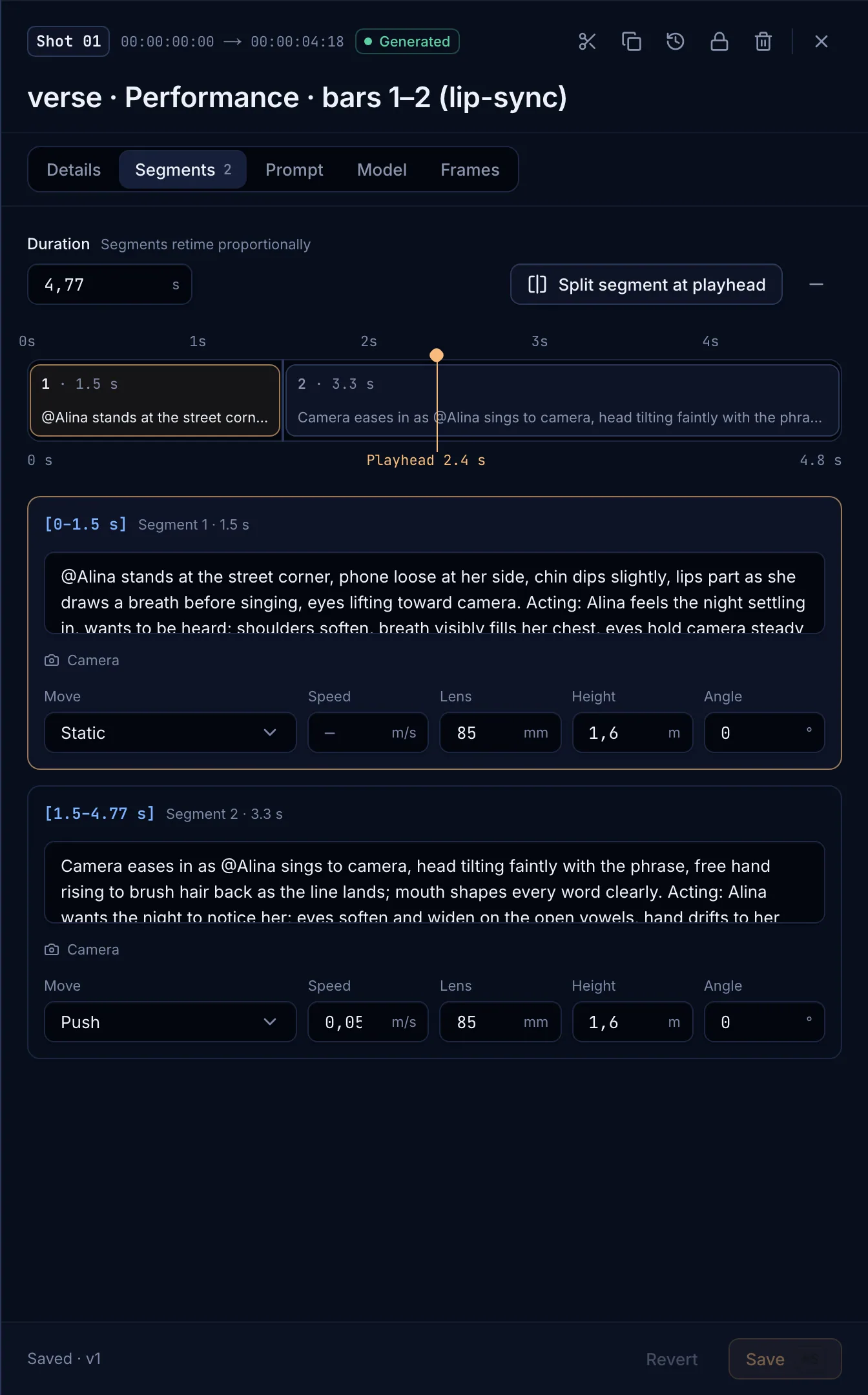
- Shot number, in → out timecode and status.
- Split, duplicate, snapshot, lock, delete, close.
- Tabs: Details, Segments, Prompt, Model, Frames.
- The segment timeline with the playhead.
- Each segment’s action and camera.
- Revert and Save (
⌘S).
| Tab | What you edit |
|---|---|
| Details | Status, duration, @references, intent, sound effects, ambience, music, dialogue with its voice, locks (carried unchanged through every re-roll) and negatives. |
| Segments | Up to 4 timed beats per shot, each with its action and camera: move, speed, lens, height and angle. Split segment at playhead divides one. Pick a camera move first to set its numbers. |
| Prompt | The whole shot in the Vexel shot grammar, checked by 12 rules as you type. Get notes asks the Writers’ Room critics. |
| Model | The target model with its quote, the compiled prompt the model reads, Draft / Final, Generate, and the shot’s versions. |
| Frames | The previz frame and the sketch, with their takes and actions. See Sketches and previz frames. |
- Closing the editor saves valid changes. Save (
⌘S) and Revert are at the bottom. - Snapshot version saves the shot’s current state as a version with an optional note (free).
- Lock shot freezes its content; re-rolls honour it. Unlock to edit again.
- Split shot (
S) cuts it in two at a time you choose (at least 1 s each side).
The prompt checkLink to The prompt check
Every shot prompt is checked against 12 rules before you spend credits: references first, one camera move, action beats, numbers not vibes, observable behaviour, motion certainty, layered audio, dialogue pacing, locks, model-aware negatives, no slop, and length. Click an issue to jump to its line. All rules pass — ready to compile. means it is clean.
Writers’ RoomLink to Writers’ Room
On the Prompt tab, Get notes asks four critics (Cinematographer, Editor, Continuity, and Brand & clarity) to read the prompt. You see the price first. Each critic scores out of 10 and leaves notes you can Apply or Dismiss; a second round lets the Director merge the notes into a revision. Nothing changes until you apply; Apply all saves the chosen notes as a new version.