Account and billing · Chapter 20
Settings and connected apps
Settings holds your studio details, your password, billing, and the apps you connect to Vexel, such as Claude and ChatGPT.
GeneralLink to General
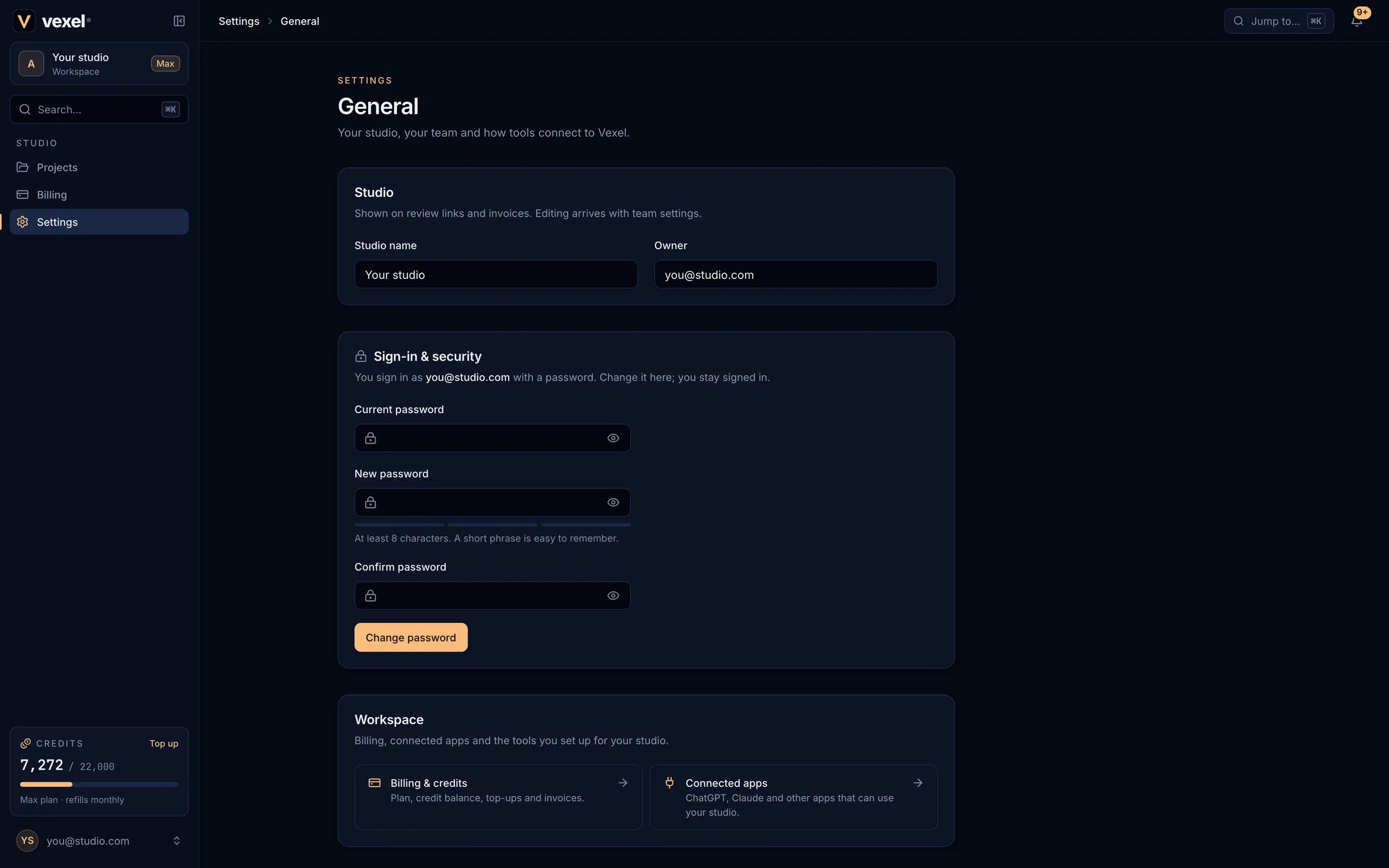
- Studio: the studio name (shown on review links and invoices) and the owner.
- Sign-in & security: set or change your password. See Your account.
- Workspace: shortcuts to Billing & credits and Connected apps.
- Members: your studio’s seats. Team invitations are on the way.
- MCP & API access: included on Pro and Max.
- Help & legal: contact support, ask to delete your account, and read the Terms, Privacy and Cookie policies.
Connect Claude Code and other MCP clientsLink to Connect Claude Code and other MCP clients
The Director works through the Vexel MCP server, and the same tools are open to your own MCP clients. Everything the Director can do, a connected app can do, with the same quotes and credit rules.
claude mcp add --transport http vexel https://app.vexel.video/api/mcpAuthenticate
In Claude Code run
/mcp, choose vexel and Authenticate. Your browser opens.Allow access
Sign in if needed. The consent page shows what the app will be able to do: read your projects, create and edit them, see your credit balance. Tick Spend credits on generations only if you want it to generate. Choose Allow access.
Check
claude mcp listshows vexel as connected.
Connect ChatGPTLink to Connect ChatGPT
Turn on developer mode
In ChatGPT: Settings → Apps & Connectors → Advanced → Developer mode (Plus, Pro, Business or Enterprise).
Add Vexel
Add a custom MCP server with the URL
https://app.vexel.video/api/mcp/chatgptand OAuth authentication.Sign in and allow
Approve the consent screen. ChatGPT gets a focused set of tools for quick clips and productions, with a player and storyboard view.
Credits cannot be bought inside ChatGPT; top up in Vexel.
Manage connected appsLink to Manage connected apps
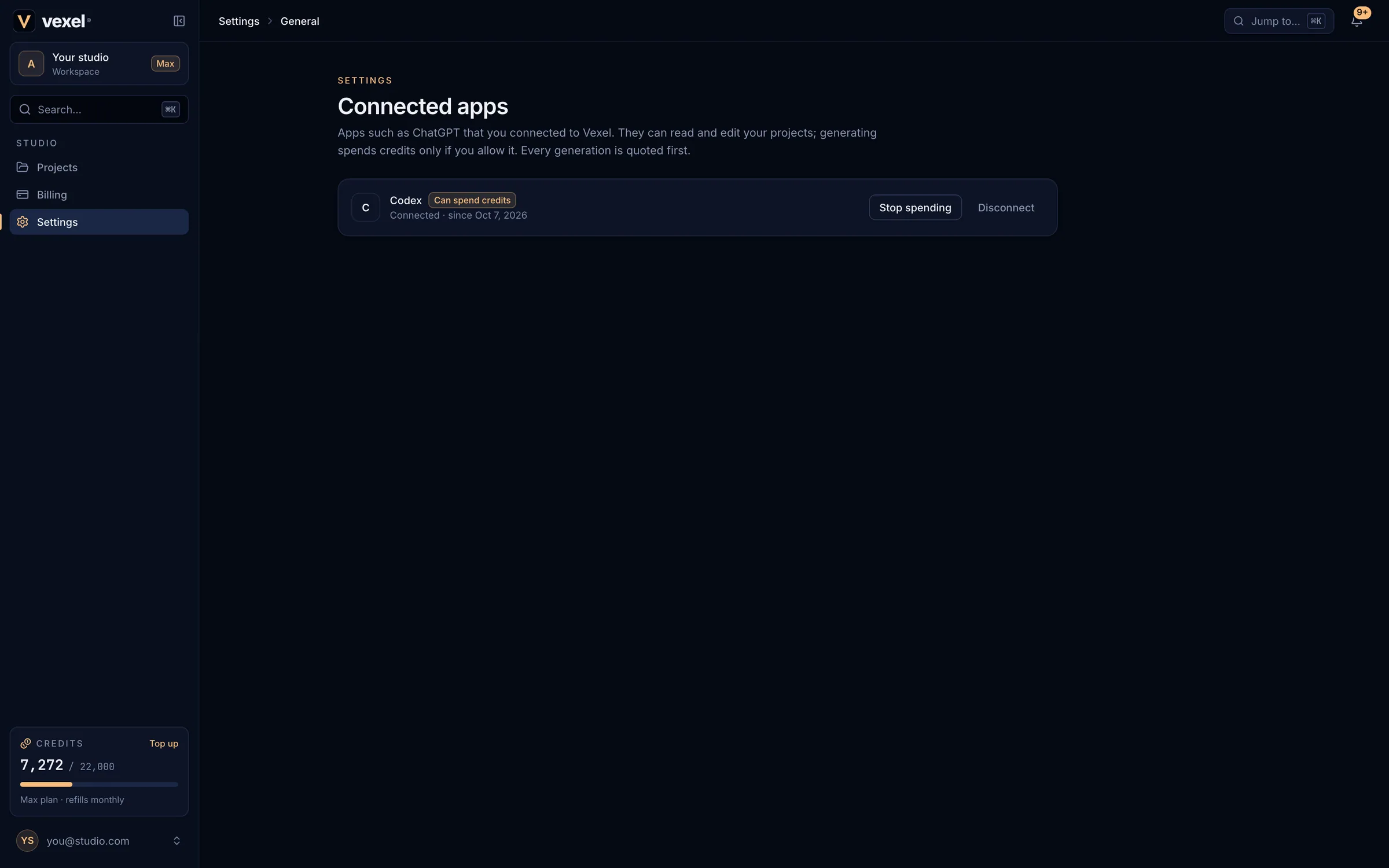
- Each app shows whether it Can spend credits or has No spending, and since when it is connected.
- Allow spending credits / Stop spending takes effect on the app’s next call; no reconnect needed.
- Disconnect revokes the app’s access.
- Only allow apps you started connecting yourself.