Start here · Chapter 4
Create a project
A project is one film: a commercial, a music video, a freeform experiment or an episode of a mini series. Creating one is free; the choices you make here set how the Director works and roughly what the film will cost.
Open the New project dialogLink to Open the New project dialog
Choose New project on the dashboard, press N, or pick New project in the command palette (⌘K).
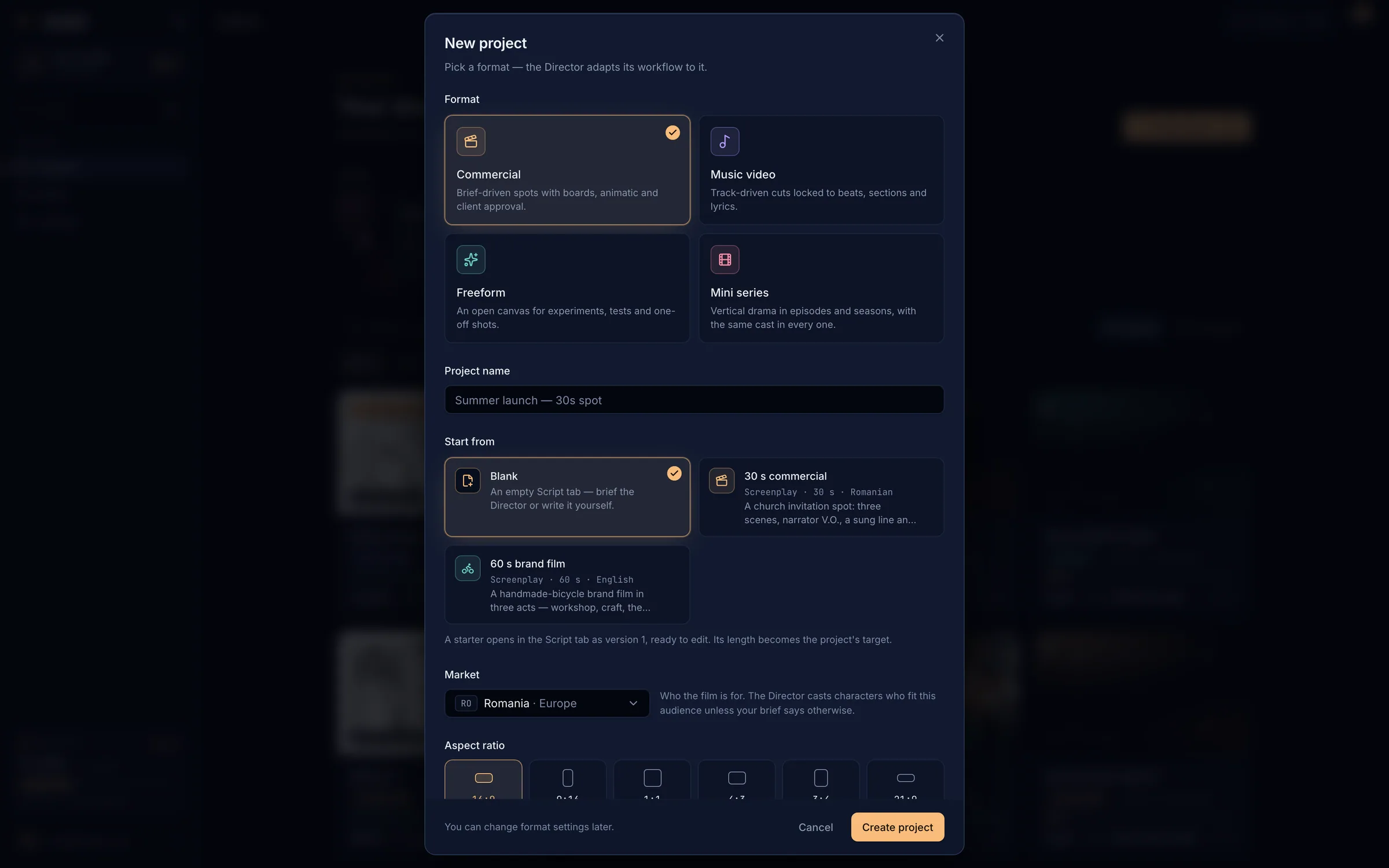
- Format: Commercial, Music video, Freeform or Mini series.
- Project name: unique among your active projects.
- Start from: a blank script or a starter.
- Market: who the film is for.
- Aspect ratio (more settings below it).
Pick a formatLink to Pick a format
| Format | For | How the Director works |
|---|---|---|
| Commercial | Brief-driven spots with boards, animatic and client approval. | Script → Cast → Boards → Animatic → Sound → Render plan → Generation → Cut → Deliver, with a checkpoint at each stage. |
| Music video | Track-driven cuts locked to beats, sections and lyrics. | Starts from the song; shots are laid on the bars. See Music videos. |
| Freeform | Experiments, tests and one-off shots. | No checkpoints: use any tool, with the same credit rules. |
| Mini series | Vertical drama in episodes and seasons, with the same cast in every one. | Each episode runs like a commercial. See Mini series. |
Name and starterLink to Name and starter
- Project name is required (up to 120 characters). If the name is taken, the dialog suggests the next free one, such as “Summer launch (2)”.
- Start from → Blank opens an empty Script tab: brief the Director or write it yourself.
- A starter (for example 30 s commercial, 60 s brand film or Music video concept) opens in the Script tab as version 1, ready to edit. Its length becomes the project’s target.
Market, aspect ratio and frame rateLink to Market, aspect ratio and frame rate
- Market: the country or region the film is for. The Director casts characters who fit this audience unless your brief says otherwise. Choose No market to cast from the brief only. You can change it later from the market chip in the project header.
- Aspect ratio: 16:9 Widescreen (default), 9:16 Vertical, 1:1 Square, 4:3 Classic, 3:4 Portrait or 21:9 Scope.
- Frame rate: 24 fps Cinematic (default), 25 (PAL broadcast), 30 (web and NTSC) or 60 (high motion). Match your delivery spec.
Render quality and flowLink to Render quality and flow
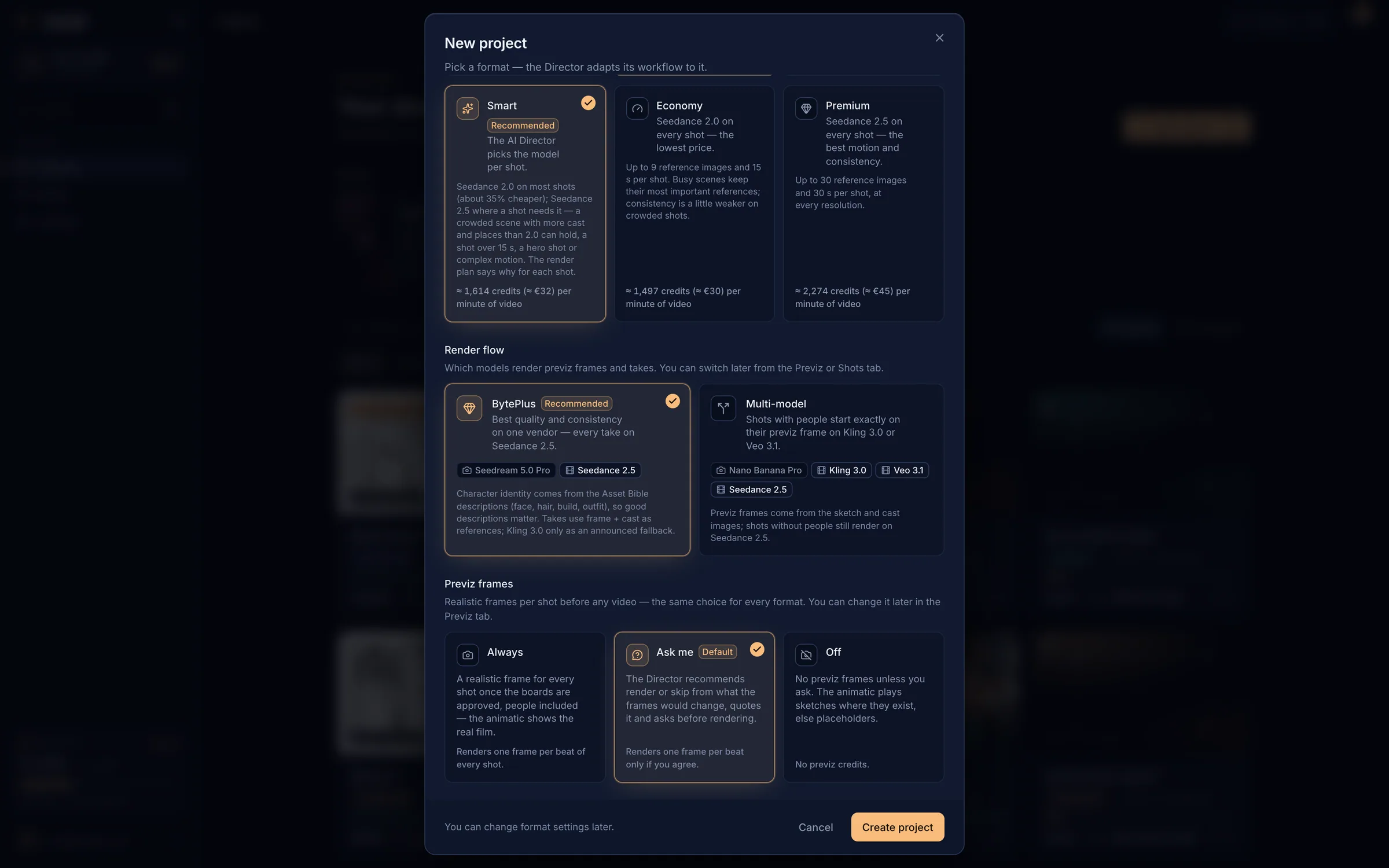
These settings decide which video models render your shots and at what resolution. The cards show an estimate per minute of video; the real price comes from the render plan’s quote, and you can change them later in the Shots tab.
| Setting | Options |
|---|---|
| Resolution | 480p for drafts and quick tests (about half the price of 720p) · 720p HD (default) for social and web; the final cut is scaled to 1080p · 1080p Full HD (about 2.2× the price of 720p). |
| Mode | Smart (recommended): the Director picks the best Seedance model per shot · Economy: Seedance 2.0 on every shot · Premium: Seedance 2.5 on every shot, with more references and longer shots. |
| Render flow | BytePlus (recommended): Seedream for previz frames, Seedance for takes · Multi-model: Nano Banana Pro for previz, and Kling, Veo or Seedance for takes. |
| Previz frames | Always renders a realistic frame for every beat of every shot · Ask me (default) asks first · Off renders none (no previz credits). |
Create and briefLink to Create and brief
Create the project
Choose Create project. It opens on the Script tab with the Director ready on the left.
Brief the Director
Describe the film or paste the brief. Attach product photos, a logo, the song or reference clips if you have them.
Approve each stage
The Director works stage by stage and stops for your approval. Continue with Working with the Director.