Make a film · Chapter 9
Asset Bible
The Asset Bible is everything that must look and sound the same in every shot: characters, locations, products, wardrobe, props, voices, styles and music references. Shots mention assets by their @handle, and the asset’s reference image goes with the shot to the model.
The Assets tabLink to The Assets tab
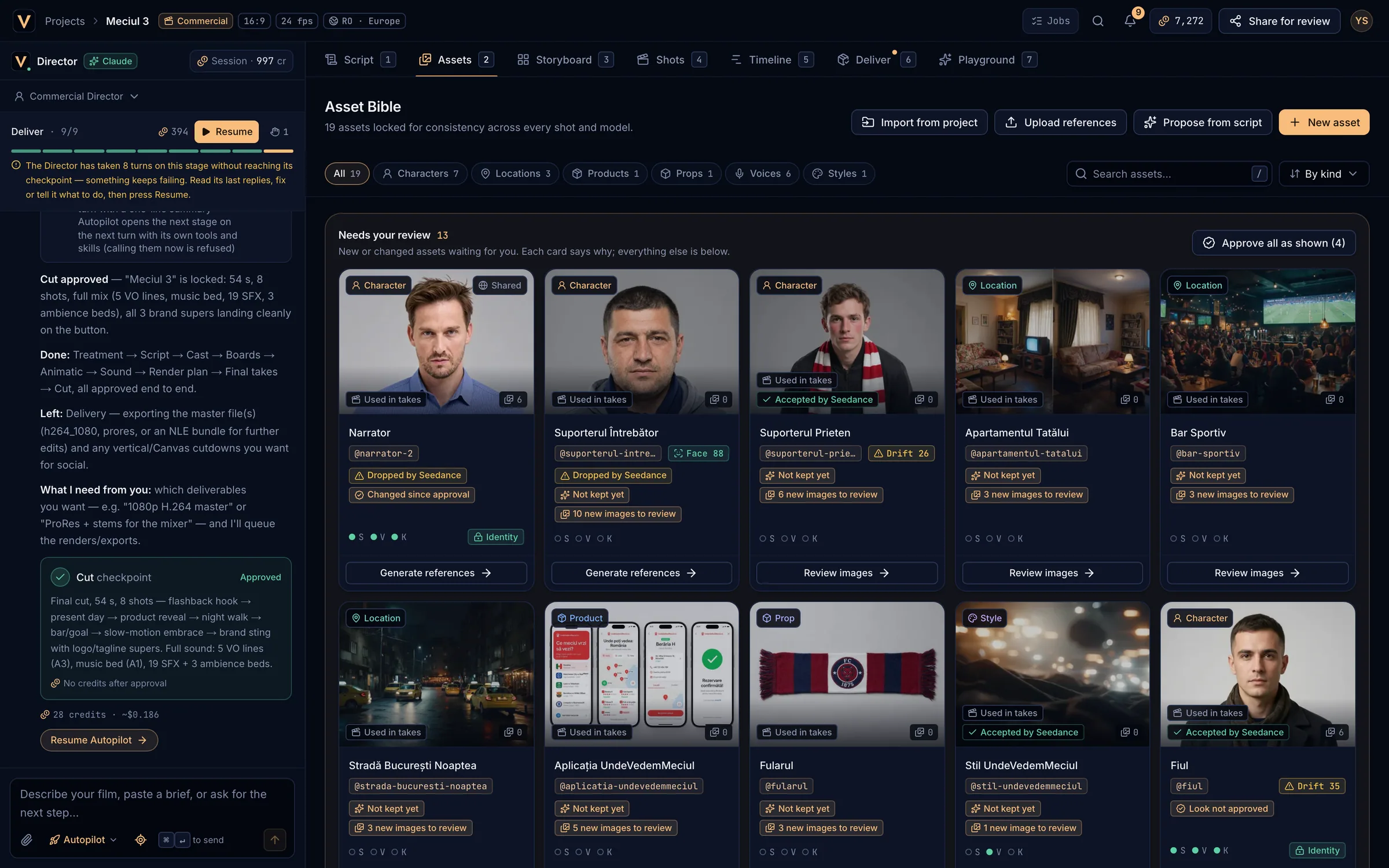
- Import from project, Upload references, Propose from script, New asset.
- Kind filters with counts.
- Search (
/) and sort. - Needs your review with Approve all as shown.
- An asset card: kind, image used in takes, status chips.
- Filter by kind (Characters, Locations, Products, Wardrobe, Props, Voices, Styles, Music refs) and search by name, @handle, tag or description.
- Sort By kind, Name A–Z, Most references or Needs refs first.
- Assets are grouped by where they live: This project, Series cast (for episodes) or Shared across projects.
Ways to add assetsLink to Ways to add assets
| How | When to use it | Cost |
|---|---|---|
| Let the Director cast | At the Cast stage it proposes assets from the script, with descriptions and references. | Its turns and reference images |
| Propose from script | Paste a script, shot list or brief; it finds characters, places, products and narrators, then Create N assets. | Free |
New asset (N) | Create one by hand: kind, name (it becomes the @mention), where it is available, description and tags. | Free |
| Upload references or drag and drop | You have real photos: your product, your talent, a location. | Free |
| Import from project | Reuse the cast, places, props and look of an earlier project, references included. | Free |
Upload referencesLink to Upload references
Drop files anywhere on the tab (Drop to add references) or choose Upload references. The upload sheet groups the files into assets (“maria_front” and “maria_profile” become one asset with Group views of the same subject), guesses each kind, and lets you rename them before Upload N files.
| Type | Formats | Max size |
|---|---|---|
| Images | PNG, JPEG, WebP, HEIC, AVIF (HEIC and AVIF are converted to JPEG in your browser) | 25 MB |
| Video | MP4, MOV, WebM | 2 GB |
| Audio (voices, music) | WAV, MP3, M4A, FLAC, AAC | 500 MB |
An asset holds up to 30 kept references.
Reading an asset cardLink to Reading an asset card
| Chip | Meaning |
|---|---|
| Used in takes | This image is what takes and frames send for the asset. |
| Identity | Identity locked: shots use a kept reference image. |
| Candidate in use | A generated image stands in until you keep one. |
| No reference | No image yet. Final shots with this asset are refused until it has one (drafts still run). |
| Accepted by Seedance / Dropped by Seedance | Whether Seedance accepts the image (BytePlus flow). Seedance drops photos of people it did not draw itself; generate references instead. |
| Face 88 / Drift 26 | Face consistency of the character across takes: 75 or more holds; below 75 is likely drift. |
| S · V · K dots | Reference coverage for Seedance, Veo and Kling: solid is ready, amber partial, hollow none. Hover for the missing views. |
| Series / Shared | A series cast asset, or one shared by every project in your studio. |
Needs your reviewLink to Needs your review
New or changed assets wait at the top of the tab, each with the reason and one action:
- N new images to review / Not kept yet → Review images: keep the ones that match, discard the rest.
- Look not approved / Changed since approval → Review and approve.
- No reference image or Dropped by Seedance → Generate references.
- Outfit image shows a person → Redraw without a person (a wardrobe image must not carry a stranger’s face).
- Approve all as shown (N) approves every look whose only open point is approval. It is free.
The asset detail sheetLink to The asset detail sheet
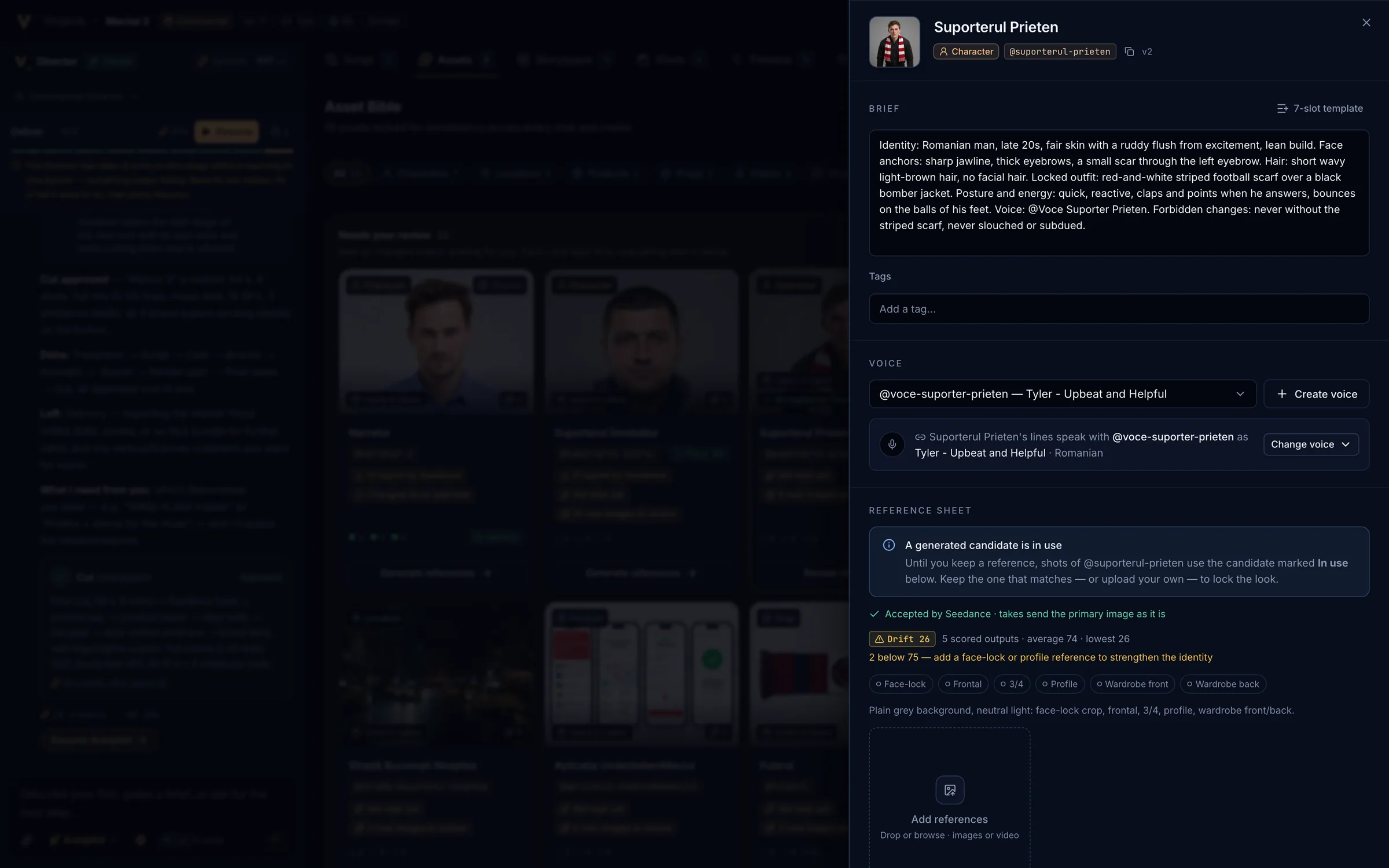
- Name: click to rename. Renaming changes the @handle (“Now mentioned as @new-name”). Copy @mention copies it.
- Brief: the description models read. Characters get a 7-slot template (identity, face anchors, hair, wardrobe, posture, voice, forbidden changes). Save with
⌘↵. - Reference sheet: the kept images. The star makes an image Primary: the one takes and frames use. The trash removes one (with Undo).
- Approve look appears when there are kept images and nothing waiting; any later change asks you to approve again.
- Generated references: candidates to Keep or discard, and Generate for more views.
- Archive asset: shots that mention it will flag it as missing. Its @name stays reserved.
Generate referencesLink to Generate references
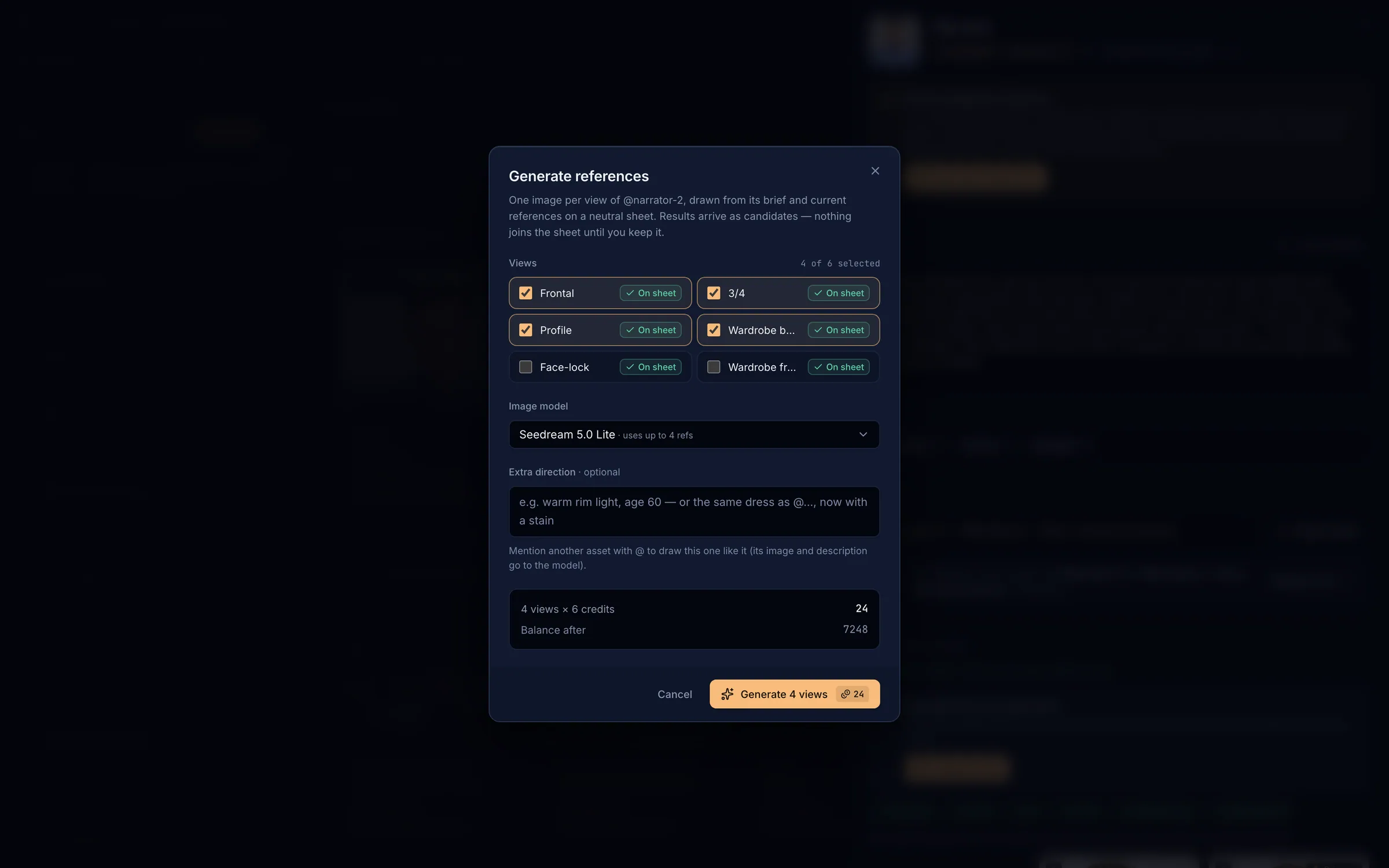
Choose the views
For a character: frontal, 3/4, profile, full body front and back, face-lock. Locations, products, wardrobe and props have their own views; styles draw 2, 4 or 6 frames. Views already on the sheet say On sheet.
Pick a model and add direction
Optional extra direction (up to 1,000 characters). Mention another asset with @ to draw this one like it.
Check the quote and generate
The dialog shows views × credits, the total and your balance after. Results arrive as candidates; nothing joins the sheet until you keep it. A view that fails is not charged.
VoicesLink to Voices
- A voice asset speaks VO and dialogue. Cast one from the voice library: search (“warm narrator, deep”), filter by language, gender and age, preview it and choose Use this voice.
- Link a voice to a character in the character’s Voice section (or Create voice), so their lines are spoken in it.
- Clone from samples turns 30 s to 2 min of clean speech (no music) into a cloned voice.
- Voice search and casting are free; speaking lines and cloning are metered.
Mentions and consistencyLink to Mentions and consistency
Shots refer to assets with @ mentions such as @Alina or @Bar Exterior. Typing @ in a shot autocompletes from the Asset Bible. The mentioned asset’s primary image travels with the shot to the model, so the same face, product and place appear in every shot. Each take with a character is scored against that character’s references; a Drift badge means the face moved away. Add a face-lock or profile reference to strengthen the identity, then regenerate the shot.