The Director · Chapter 6
Working with the Director
The Director is the Claude-powered agent in the left pane of every project. You talk to it in plain language; it writes, casts, boards, plans and edits through the same tools you see in the workspace, and it stops for your approval before anything costly happens.
The Director paneLink to The Director pane
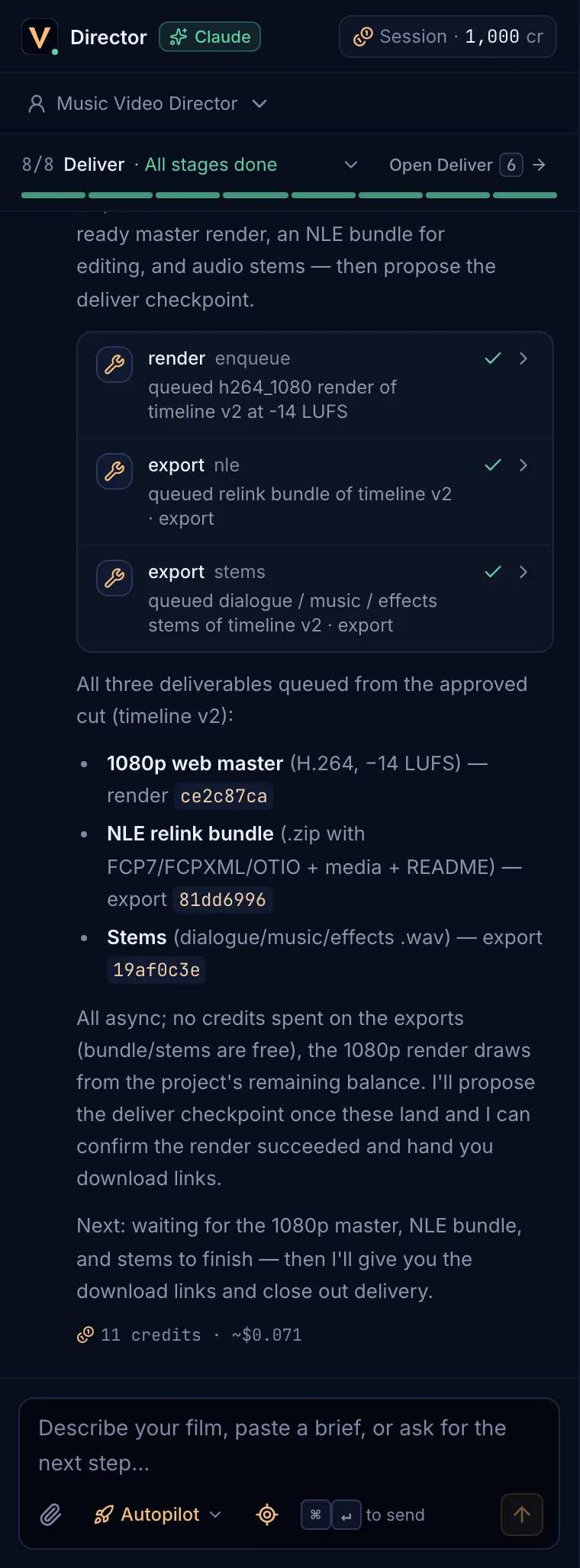
- Director header: the status dot, the Claude badge and the Session cost pill.
- The role picker (here Music Video Director).
- Stage strip: the current stage, its number of the total and Open <tab>.
- Tool-call cards: every action the Director takes, with its result.
- The message box, with Attach, the drive mode and Follow.
- The pane is resizable on large screens: drag its edge (or use the arrow keys on the handle); double-click resets it. On smaller screens it becomes a drawer opened with the Director button in the top bar.
- The dot next to the monogram shows its state: pulsing while it works, green when Claude is ready, grey when it is unavailable.
- Session · N cr is what the Director has spent in this session (its own turns plus the work it queued). It is not your balance; hover it to see the last turn and your balance.
Brief the DirectorLink to Brief the Director
A new project opens with Ready to direct <project>. and a few suggestions to try. Write what you want the way you would brief a director: the product or story, the audience, the length, the tone, what must be in it and what to avoid. Paste a client brief as it is.
Write or paste the brief
Type in the box at the bottom: Describe your film, paste a brief, or ask for the next step… Plain Enter makes a new line.
Send
Press
⌘↵(orCtrl+↵) or the send arrow.Watch it work
A status line shows what it is doing (“Reading the project…”, then the current step and the elapsed time). Tool calls appear as cards as they run.
Answer and approve
The reply ends with what is next. When a stage is done the Director proposes a checkpoint for you to approve; see Checkpoints and Autopilot.
- Messages can be up to 12,000 characters. For a long script, paste it into the Script tab or attach it as a file.
- While the Director is working you can still type:
⌘↵queues your message (“Queued — sends when the Director finishes”). - Press
Escor Stop to stop a running turn.
Attach filesLink to Attach files
Attach reference photos, a product shot, a song or a video clip with the paperclip, by dragging files onto the pane, or by pasting a screenshot. The Director looks at the images and, when you ask, adds any file to the Asset Bible.
| Type | Formats | Max size |
|---|---|---|
| Images | PNG, JPEG, WebP (HEIC is converted to JPEG where the browser can) | 25 MB |
| Audio | WAV, MP3, M4A, FLAC, AAC | 500 MB |
| Video | MP4, MOV, WebM | 2 GB |
Up to 8 files per message. Files upload straight to storage; the message sends when the uploads finish.
Tool calls and what they meanLink to Tool calls and what they mean
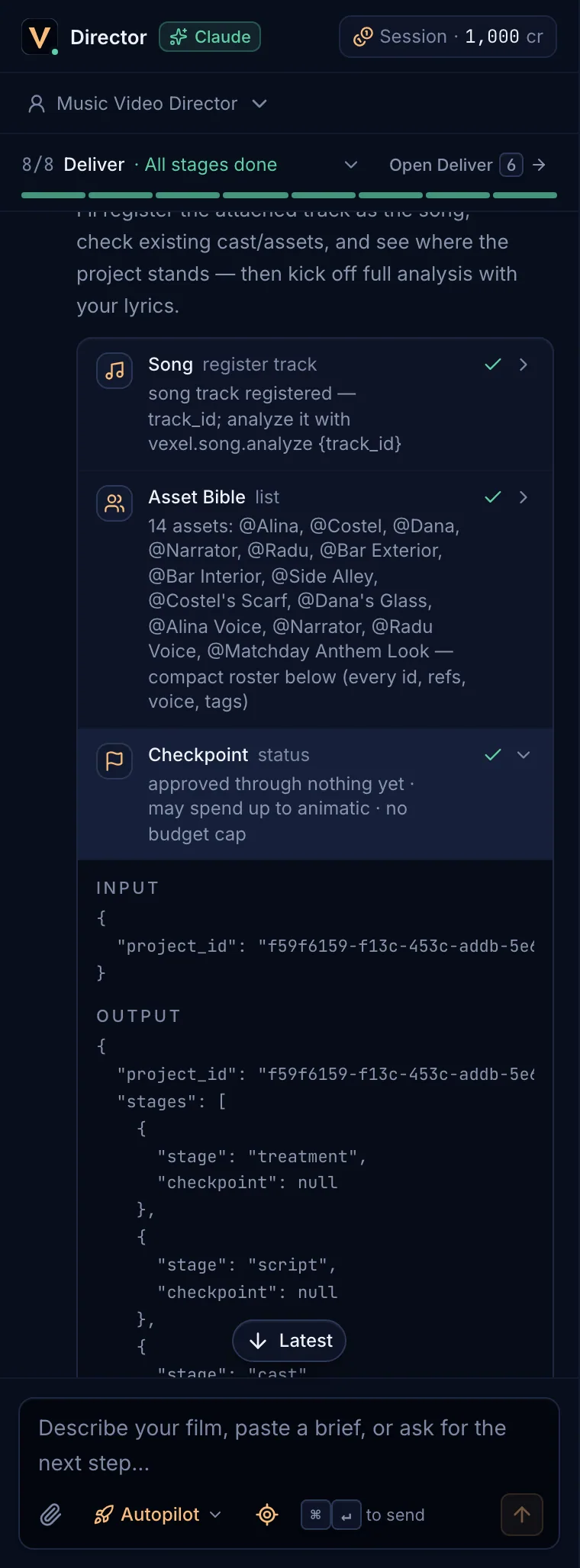
- Each card names the action (for example render · enqueue or checkpoint · propose) and resolves to a one-line summary.
- The icon shows the state: a spinner while running, a check when done, an amber warning for Not ready yet (a step still to do, not an error) and a red cross for Failed.
- A credits pill on a card shows credits reserved by that action.
- Chips for changed items link to the tab where they changed; the rows the Director touched pulse in the workspace.
- Calls that do not depend on each other run in parallel.
Skills used chips show the playbooks the Director loaded for the turn: a stage, a format or genre, a craft such as camera or lighting, or the prompting style of a model. Hover a chip for its id.
Questions from the DirectorLink to Questions from the Director
When a decision is yours, the Director asks with a card pinned above the message box: The Director needs your answer. Each question has three options with their trade-offs (and the cost when an option spends credits); the recommended one is first. Other… lets you write your own answer.
| 123 | Pick an option |
| 4 | Write your own answer (Other…) |
| ↵ | Next question, or send on the last one |
| ←→ | Move between questions |
RolesLink to Roles
The Director changes role with the stage: Commercial Director, Music Video Director, Series Director, Storyboard Artist, Editor or Producer. Pick one in the role menu under the header to keep it for the session.
FollowLink to Follow
With Follow on (the target icon in the message box, on by default), the workspace opens the tab the Director is working in. If you switch tabs during a turn, your choice wins until the turn ends and the button shows Follow · <tab>; click it to jump back. Scrolling up in the pane shows Latest to jump back to the newest message.
Next steps, Continue and time limitsLink to Next steps, Continue and time limits
Under the last reply you get buttons for the next step. Their meaning:
- Approve & continue / Request changes: a checkpoint is waiting for you.
- Waiting for N jobs · d/t done: the Director queued background work (sketches, renders, analysis). It continues by itself when the work finishes.
- Continue: go on with the next step. It also appears when a turn paused at its time limit.
- Continue where it left off: the connection dropped mid-turn; the work so far is saved.
A turn has a time limit. Near it, the Director stops starting new work and sums up what is done and what is left (Paused at the time limit). In Step-by-step mode it continues automatically, up to twice in a row per message you send.
What a turn costsLink to What a turn costs
- Each Director turn is metered by the tokens it uses, with a minimum of 1 credit. A hold is placed when the turn starts and settled to the real cost when it ends; the reply shows N credits under it.
- Work the Director queues (images, video, renders) is quoted and charged separately, like the same action in the workspace.
- A turn needs at least 5 credits to start. With less, it stops before spending anything and asks you to top up.