Start here · Chapter 3
Studio and projects
The Projects dashboard is home: every project and series in your studio, what each one needs from you next, and your credit balance.
The dashboard at a glanceLink to The dashboard at a glance
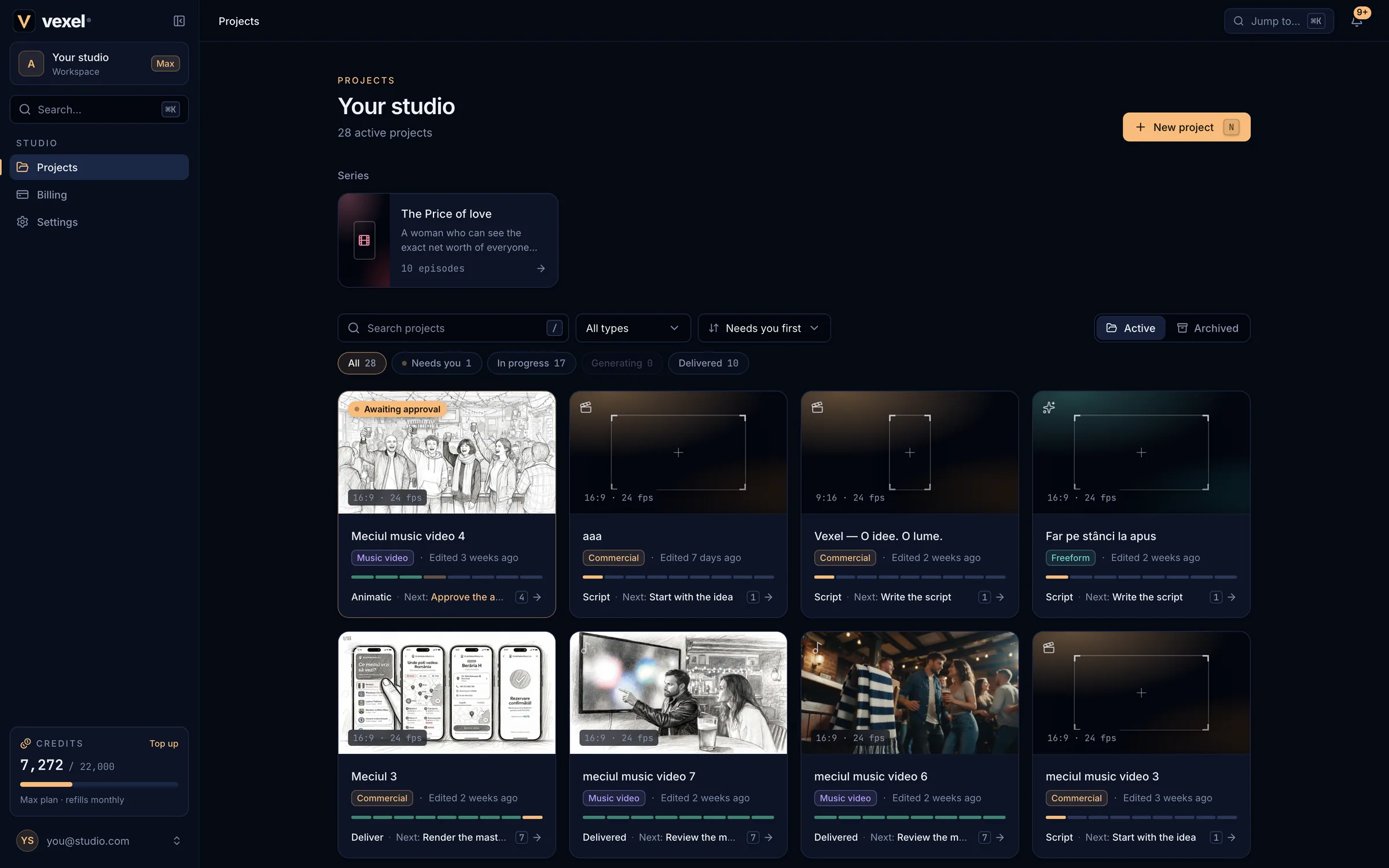
- Studio card with your plan.
- Search… opens the command palette (
⌘K). - Projects, Billing and Settings.
- Credit meter: balance of the plan allotment, and Top up.
- New project (
N). - Series, each with its episodes.
- Search, type, sort and the Active/Archived switch.
- Stage chips: Needs you, In progress, Generating, Delivered.
- Project cards with their stage and next step.
The left sidebarLink to The left sidebar
- Studio card: your studio name and plan. There is one studio per account.
- Search…: opens the command palette (see below).
- Projects, Billing, Settings: the three studio pages.
- Credits: your balance out of your plan’s allotment, with Top up to buy a credit pack. The bar turns amber below 15 %.
- Account menu (your avatar, bottom): Command palette, Billing, Settings, Theme (System, Light, Dark) and Sign out.
- Collapse the sidebar with
⌘B. On a phone it opens from the menu button.
Project cardsLink to Project cards
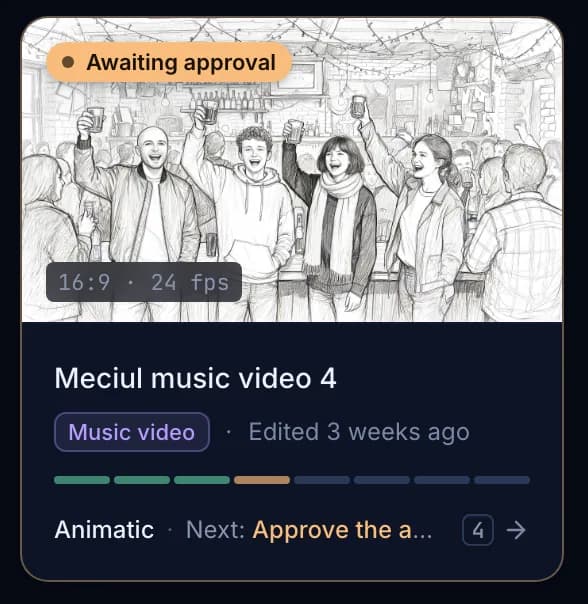
- Poster: the approved frame or the newest image of the project, with the aspect ratio and frame rate.
- Awaiting approval (pulsing): a checkpoint is waiting for you. N jobs running: generation is in progress.
- Type badge (Commercial, Music video, Freeform, or S1 E2 for an episode) and when it was last edited.
- Stage bar: one segment per stage (Script, Cast, Boards, Animatic, Render plan, Generation, Cut, Deliver; commercials also have Sound). Green is done, the accent segment is the current stage.
- Next step: for example “Boards · Next: Approve the boards”. Click the card to open the tab where that step happens.
The … menu on a card has Open, Rename…, Copy link and Archive. Names are unique among your active projects (ignoring case).
Find a projectLink to Find a project
- Search projects (
/focuses it,Escclears it): every word must match the name. - All types: show only Commercial, Music video or Freeform projects.
- Sort: Needs you first (default), Last edited, Newest or Name A–Z.
- Stage chips: All, Needs you, In progress, Generating, Delivered.
- Filters are part of the address, so you can bookmark or share a filtered view. The grid shows 12 projects per page.
- Episodes of a mini series live on their series page, not in the grid.
Archive and restoreLink to Archive and restore
Choose Archive in a card’s menu to tidy the dashboard. An archived project keeps everything. Switch to Archived to see them and choose Restore to bring one back. If an active project now has the same name, rename one of them first.
Command paletteLink to Command palette
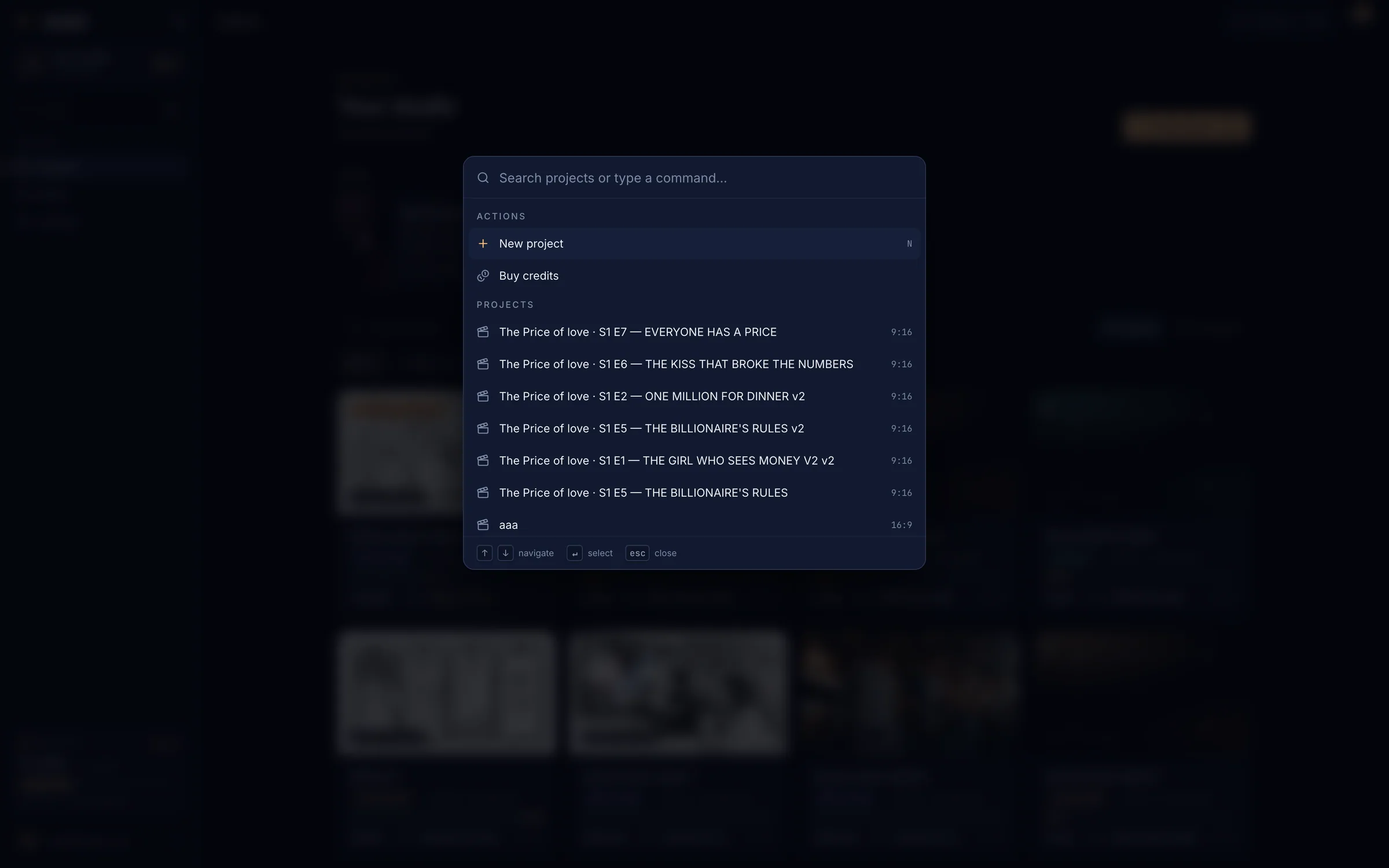
⌘K anywhere to jump to a project, a tab or an action.- Type a project name to open it, or a command such as “billing”.
- Actions: New project and Buy credits. Inside a project, the current tab’s commands come first, then Go to <tab>.
- Use
↑↓to move,↵to run,Escto close.
NotificationsLink to Notifications
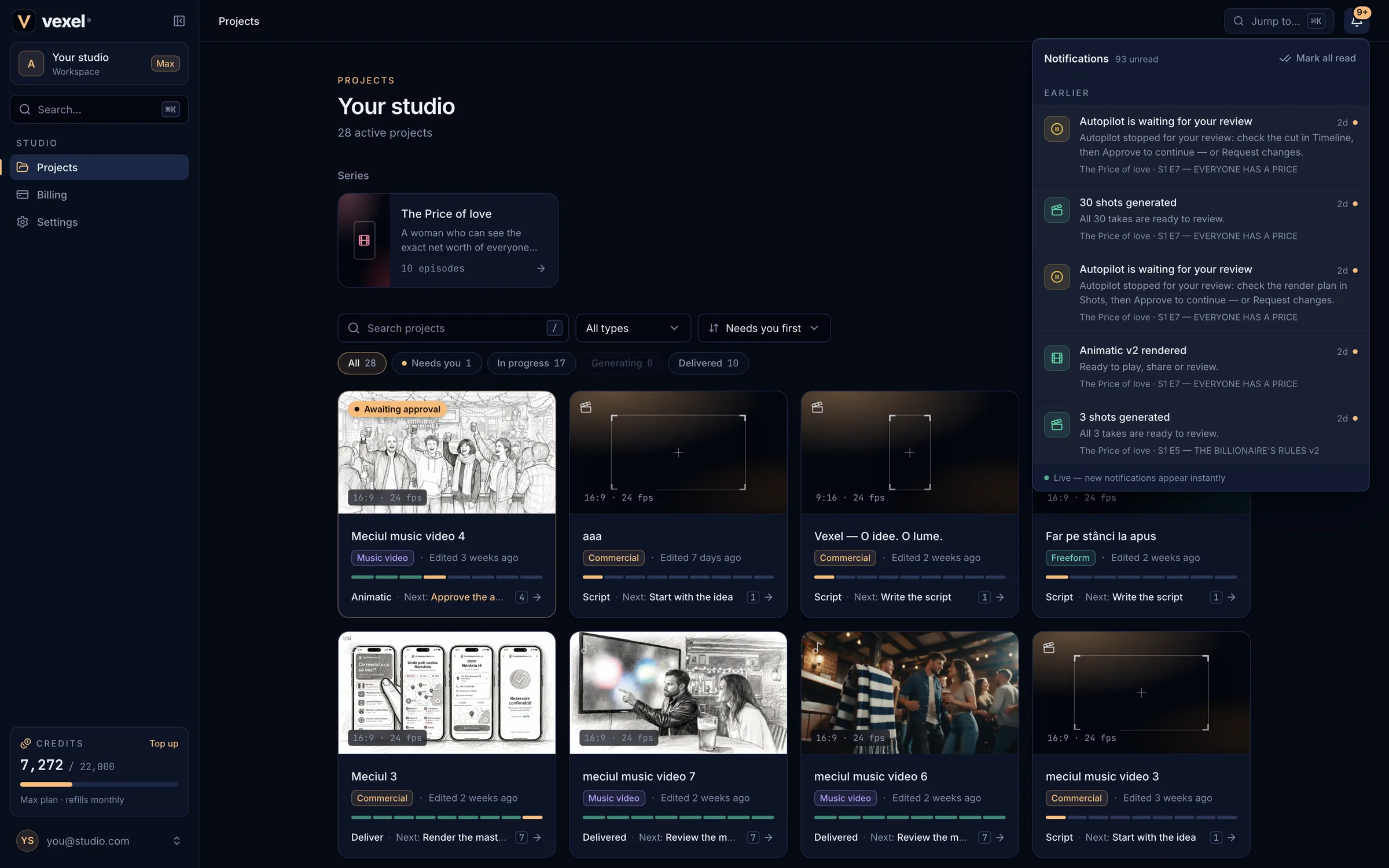
- You are notified when a render or export finishes or fails, a batch of shots is generated, a client comments on or approves a review link, and when Autopilot pauses for you.
- Inside a project, switch between This project and All projects. Click a notification to open the right tab; Mark all read clears the badge.
- New notifications appear live.