The Director · Chapter 7
Checkpoints and Autopilot
A project moves through stages, and each stage ends with a checkpoint: the Director shows what it made and what the next step will cost, and waits for you. Approve it, ask for changes, or let Autopilot approve the routine ones for you.
The stagesLink to The stages
| Stage | What it produces | Tab |
|---|---|---|
| Script | The concept, then the timed screenplay (one checkpoint for both). | Script |
| Cast | The Asset Bible: characters, places, products, voices with reference images. | Assets |
| Boards | A shot list with timed segments and camera, and a frame per shot. | Storyboard |
| Animatic | The frames timed into a watchable film. Optional. | Storyboard |
| Sound | Final VO, the music bed and the mix (commercials). | Storyboard |
| Render plan | A model for every shot and one quote for the whole board. | Shots |
| Generation | Every shot rendered as a video take. | Shots |
| Cut | The takes assembled and finished on the timeline. | Timeline |
| Deliver | Masters, editorial handoff and review links. | Deliver |
Commercials and episodes have all nine stages; music videos have no Sound stage; Freeform projects have no checkpoints. The strip under the Director header shows where you are (for example 3/9 Boards · Next up). Click it to see every stage; Open <tab> jumps to where the current stage’s work happens.
Approve or request changesLink to Approve or request changes
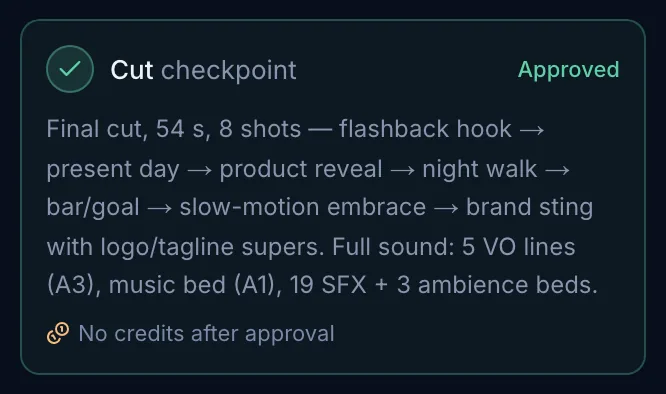
- The card is titled <Stage> checkpoint and summarises the work, sometimes with Before you approve steps to check. The cost line says N credits once approved or No credits after approval, with a link to review the work in its tab.
- Approve & continue approves the stage and starts the next one straight away.
- Request changes asks What should change? Write a note (for example “Warmer tone, lose the drone shot”) and choose Send changes. The Director revises and proposes again.
- You can also approve the Script checkpoint from the Script tab while it is Awaiting approval.
| Badge | Meaning |
|---|---|
| Awaiting you | Proposed; your decision is needed. |
| Approved | Done. The next stage can start. |
| Changes requested | Your note went back to the Director. |
| Replaced by a newer proposal | The Director proposed again after more work. |
| Outdated — changed since | Shots, takes or the timeline changed after it was proposed; the Director finishes the work and proposes again. |
| Reopened — re-approve | The stage was reopened after approval (see below). |
Skip the animaticLink to Skip the animatic
The animatic is a choice, not a gate: recommended when a client must sign off, optional for short spots and tests. When it is the current stage, open the stage list and choose Skip. Give a reason (it is kept with the project) and confirm Skip animatic. A skipped stage can be run later from the stage list (Run the animatic anyway…).
Reopen an approved stageLink to Reopen an approved stage
Open the stage list
Click the stage strip under the Director header.
Choose Reopen
Open the … menu on an approved stage and choose Reopen <stage>…. The dialog shows which later stages go back to review.
Say what needs to change
For example “The narrator should be a warm female voice”, then Reopen <stage>. The Director redoes what changes and proposes each stage again.
The Director may also suggest a reopen itself with a Needs your OK card; nothing changes until you choose Reopen or Keep it approved. Redrawing references or picking a new primary image never needs a reopen.
Step-by-step and AutopilotLink to Step-by-step and Autopilot
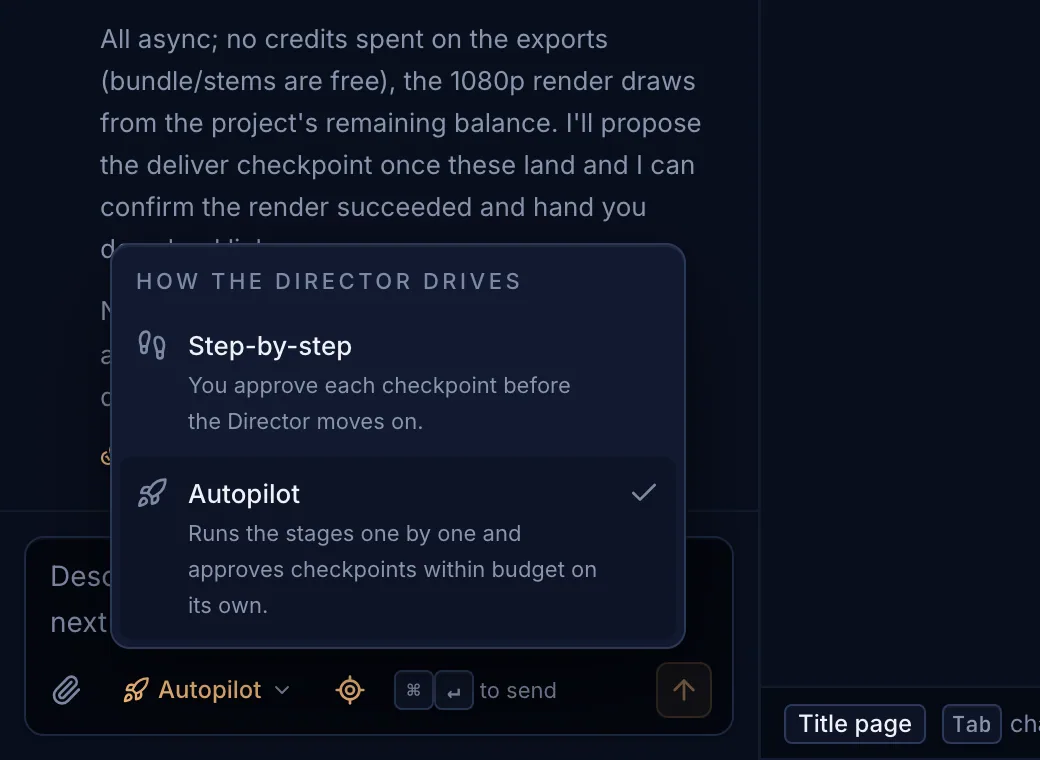
- Step-by-step (default): you approve each checkpoint before the Director moves on.
- Autopilot: runs the stages one by one and approves checkpoints within budget on its own. It runs on our servers, so it keeps going when you close the tab; you are notified when it needs you.
Switch to Autopilot
Open the mode menu in the message box and choose Autopilot. On a new project, then write and send your brief; Autopilot takes over from there.
Pick the review stops
The hand icon in the Autopilot bar opens Stop for my review at: tick the stages you want to check yourself (Script, References, Boards, Animatic, Sound, Render plan, Cut). By default it stops only at References (the cast). Autopilot approves every other in-budget checkpoint.
Watch or walk away
The bar shows the stage, the credits spent this run and any background work. Pause stops after the current step; Resume carries on.
Why Autopilot pausesLink to Why Autopilot pauses
| Message | What to do |
|---|---|
| Autopilot stopped for your review | Check the work in the linked tab, then Approve (or Request changes). |
| The plan needs N credits; your balance is M | Top up credits, then Resume. |
| The plan needs N credits; the project budget has M left | Approve anyway from the bar, or ask the Director for a cheaper plan. |
| The Director needs you / your confirmation | Answer the question card or confirm the card, then Autopilot goes on. |
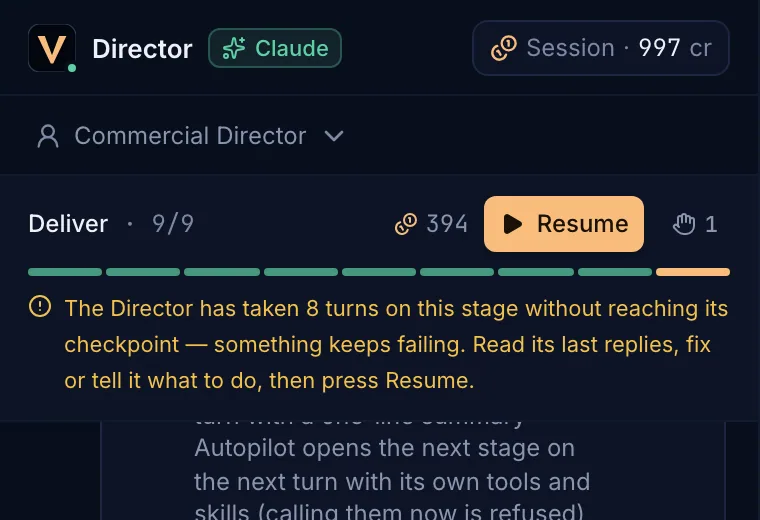
| The Director has taken 8 turns on this stage without reaching its checkpoint | Something keeps failing. Read its last replies, fix it or tell it what to do, then Resume. |
| The Director didn’t propose the next checkpoint | Tell it what to do in the chat, or press Resume to try again. |
| The Director was interrupted twice in a row | Its work is saved; press Resume. |
| You paused Autopilot | Press Resume when ready. |
Autopilot finishes when the cut is approved and the deliverables are queued: Autopilot finished — the deliverables are queued.
Project budgetsLink to Project budgets
Ask the Director to set a credit budget for a project (“Keep this project under 3,000 credits”). Every checkpoint then carries an estimate; a proposal that needs more than what is left is refused with the numbers, and the Director looks for cheaper models or draft takes.