Formats · Chapter 17
Music videos
A music video starts from the song. Vexel maps its bars, sections and lyrics, lays the shots on the bars, drives each take with its slice of the track, lip-syncs the sung lines and cuts on the beat.
Add the songLink to Add the song
Create a Music video project
See Create a project.
Upload the track
In the Assets tab, use Add the song (or drop the file and tick The project song). WAV or MP3 work best; audio up to 500 MB.
Let it analyse
The song is analysed automatically, free, in about 3 minutes: stems, beats, bars, sections, energy, key and word-timed lyrics. The Director waits for it.
The song panelLink to The song panel
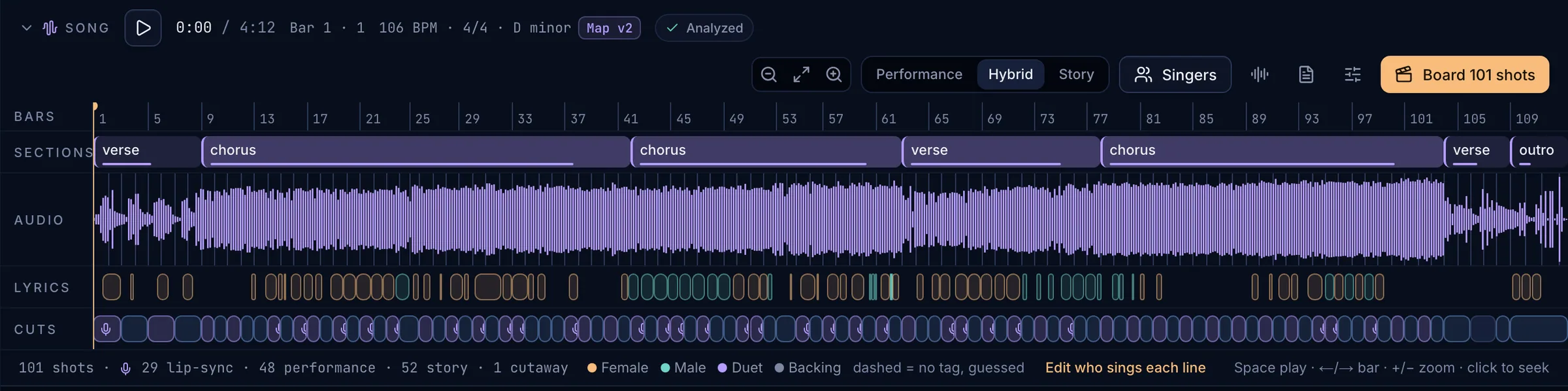
- Play, time, bar, BPM, meter, key and the map version.
- Zoom, cut style (Performance, Hybrid, Story) and Singers.
- Board N shots.
- Lanes: Bars, Sections, Audio, Lyrics, Cuts.
- Summary and the singer legend.
- The panel sits above the script in the Script tab. Sections are shaded by energy; Lyrics chips are coloured by who sings (Female, Male, Duet, Backing; dashed means guessed); Cuts previews the planned shots: performance, story and cutaways, with a mic on lip-sync shots.
- The cut style sets the mix in sung sections: Performance (about 70 % performance shots), Hybrid (half and half, default) or Story (about 30 %). Instrumental sections never get performance shots.
- Click or drag the lanes to seek.
Spaceplays,←→move a bar,+−zoom.
Lyrics and singersLink to Lyrics and singers
- Paste lyrics (the document icon): one sung line per row.
[Verse]and[Chorus]headers are fine; voice tags go in headers such as[Female],[Male - shouted],[Female + Male],[Backing vocals]or a cast name like[Verse 2: Radu]. - Update singers only applies the tags instantly; Analyze with lyrics re-runs the analysis with your lyrics as a guide.
- Edit who sings each line (or Singers) sets Female, Male, Duet or Backing per line;
⇧-click sets a range. Click a lyric chip to set one line. - Lyrics become lip-sync performance shots. The words are never written into a video prompt.
Shots on the barsLink to Shots on the bars
- Board N shots turns the planned cuts into storyboard shots that last whole bars. On a board with shots it asks: Add after or Replace board (shots with work on them are kept).
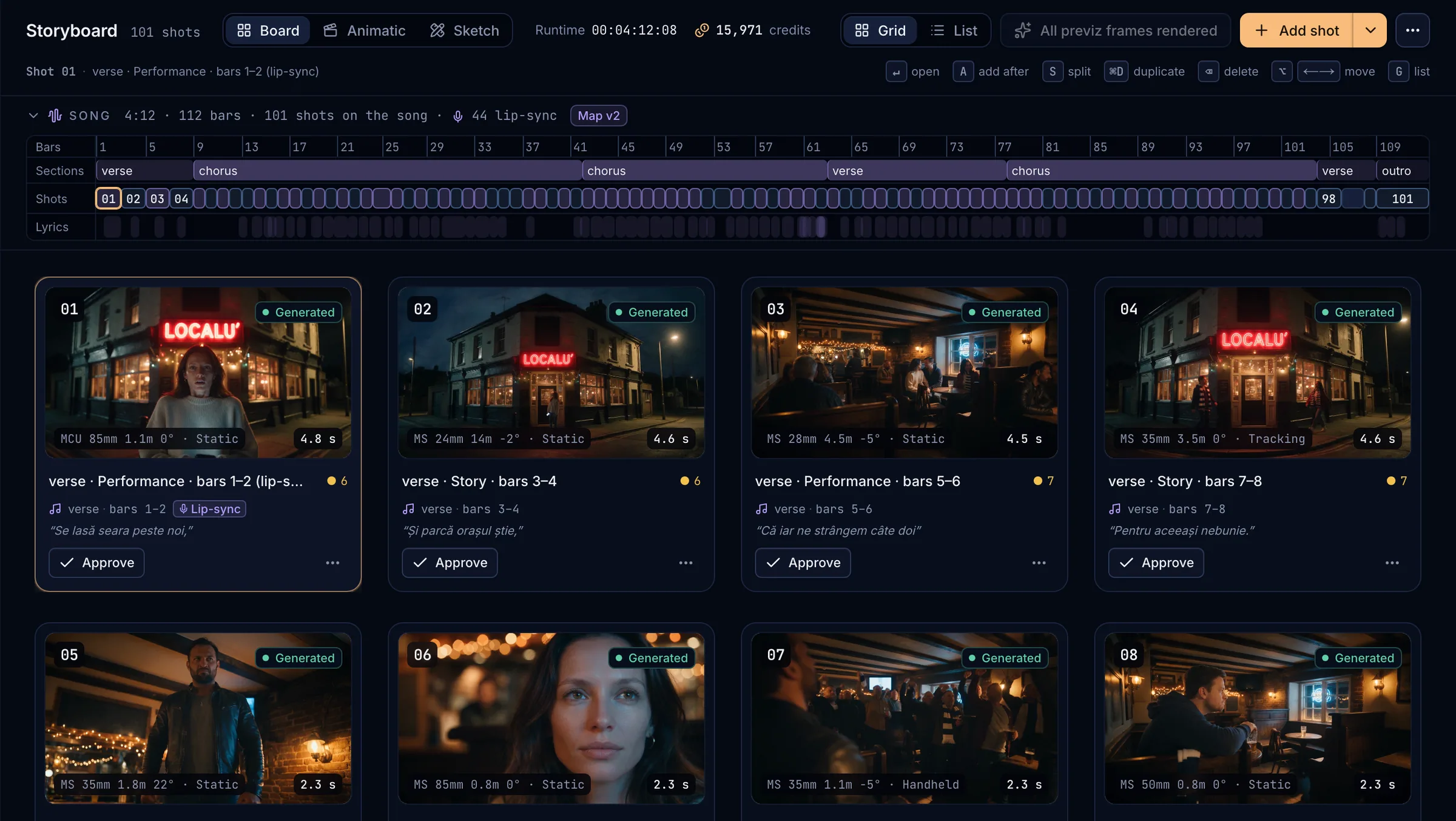
- The Storyboard shows the song strip above the board, and each card shows its section, bars, a Lip-sync badge and its lyric line.
- If shots were retimed off the bar lines, N cuts off the bar offers Snap to bars. Locked shots keep their place.
Takes driven by the trackLink to Takes driven by the track
- Each song shot is generated with its slice of the track as the model’s audio reference: the vocal stem for sung lines, the full mix otherwise.
- Takes are rendered at least as long as their slot, with handles for dissolves.
- In the Shots tab, performance shots have a Lip-sync · sung line strip: switch it on to lip-sync every new take automatically, or Run lip-sync pass on the take in the cut. Lines up to 15 s use Sync React-1, longer ones Lipsync-2. The synced take arrives as the next version.
The cut on the songLink to The cut on the song
Assembling a music video lays the song on A1 and every take on its bar lines. From Deliver you can render a vertical 9:16 master (subject-aware re-framing) and a Spotify Canvas.
Map a song by handLink to Map a song by hand
If an analysis fails (unreadable file, empty, or longer than 20 minutes), choose Retry or Map by hand: set the BPM or Tap the tempo, the meter (4/4, 3/4, 6/8), where bar 1 starts (Use the playhead), the key, and paste the lyrics with section headers. Each save makes a new map version.