Make a film · Chapter 15
Timeline
The Timeline is a browser editor for the cut: picture on V1–V4, sound on A1–A8, titles and captions on T. Every edit saves as a new version, so you can always go back.
The TimelineLink to The Timeline
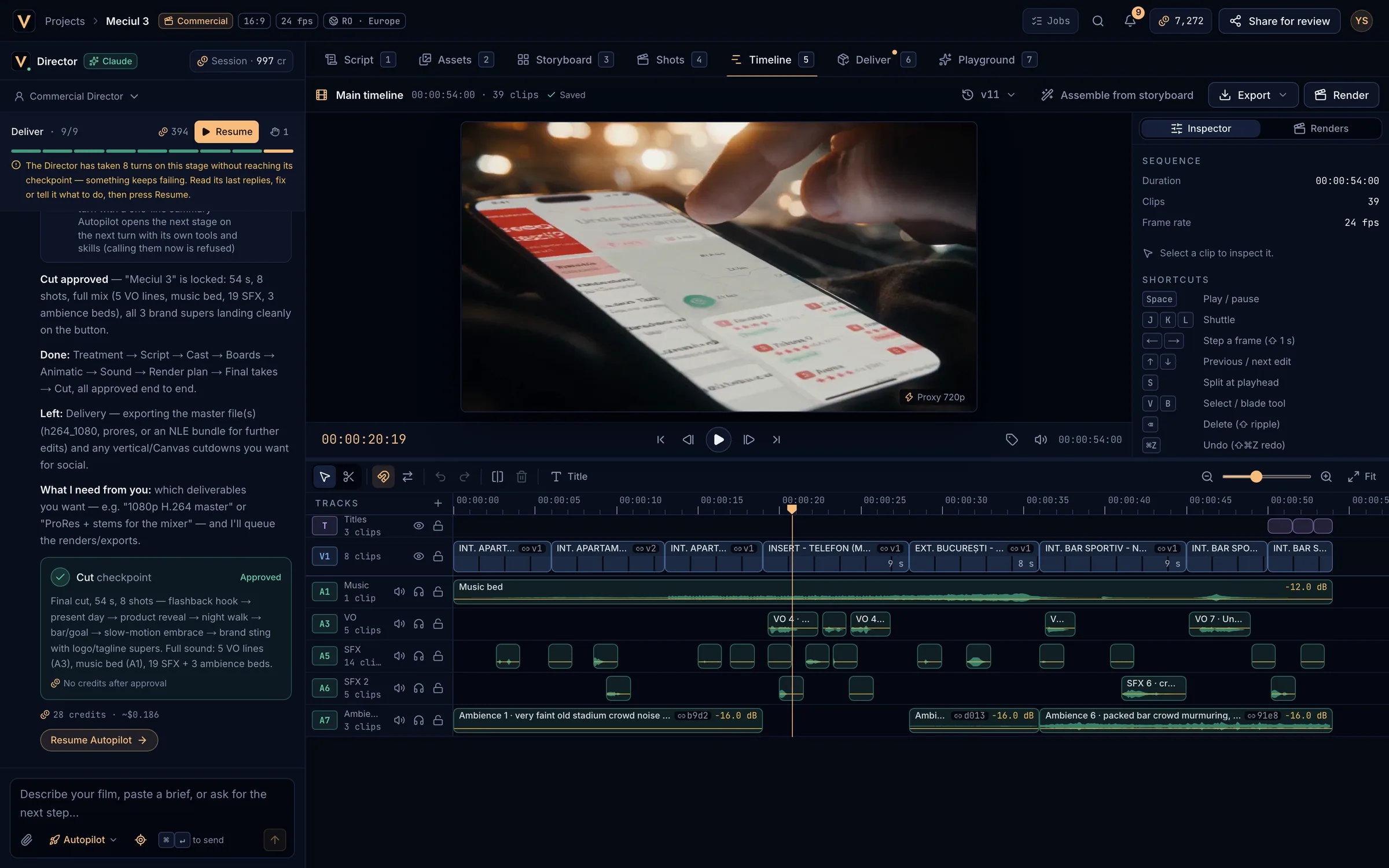
- Timeline name, duration, clips and save state.
- Version history.
- Assemble from storyboard, Export and Render.
- The viewer (720p proxy for frame-accurate scrubbing).
- Inspector and Renders.
- Tools: select, blade, snapping, ripple, undo, split, delete, title.
- Track headers: hide, mute, solo, lock.
- Clips on the tracks.
Assemble the cutLink to Assemble the cut
- Assemble from storyboard lays every shot on V1 in board order with its take in the cut. Storyboard supers go on the T track. On a timeline that already has clips it asks Rebuild V1 from the storyboard?: only V1 is replaced, other tracks stay, and
⌘Zundoes it. - Shots without a take come in as offline slates that hold their place until the shot is generated.
- The Shots tab’s Re-assemble opens the same confirmation after you pick a different take.
- At the Cut stage the Director assembles, adds sound by role and proposes the Cut checkpoint.
Edit clipsLink to Edit clips
- Click to select;
⇧- or⌘-click adds clips. Drag a clip to move it within tracks of its kind. Drag an edge to trim; a red Overlaps another clip means the drop is refused. - Blade (
B) cuts a clip where you click. Split at playhead (S) splits the selected clips, or every clip under the playhead. - Ripple edits makes trims and deletes close the gap.
⇧⌫ripple-deletes either way. - Right-click a clip for Add cross dissolve, Use vN (swap to another take of the shot), Reset gain, Delete and Ripple delete. Right-click a gap for Close gap.
- Snapping (
N) snaps to clip edges and the playhead.
The InspectorLink to The Inspector
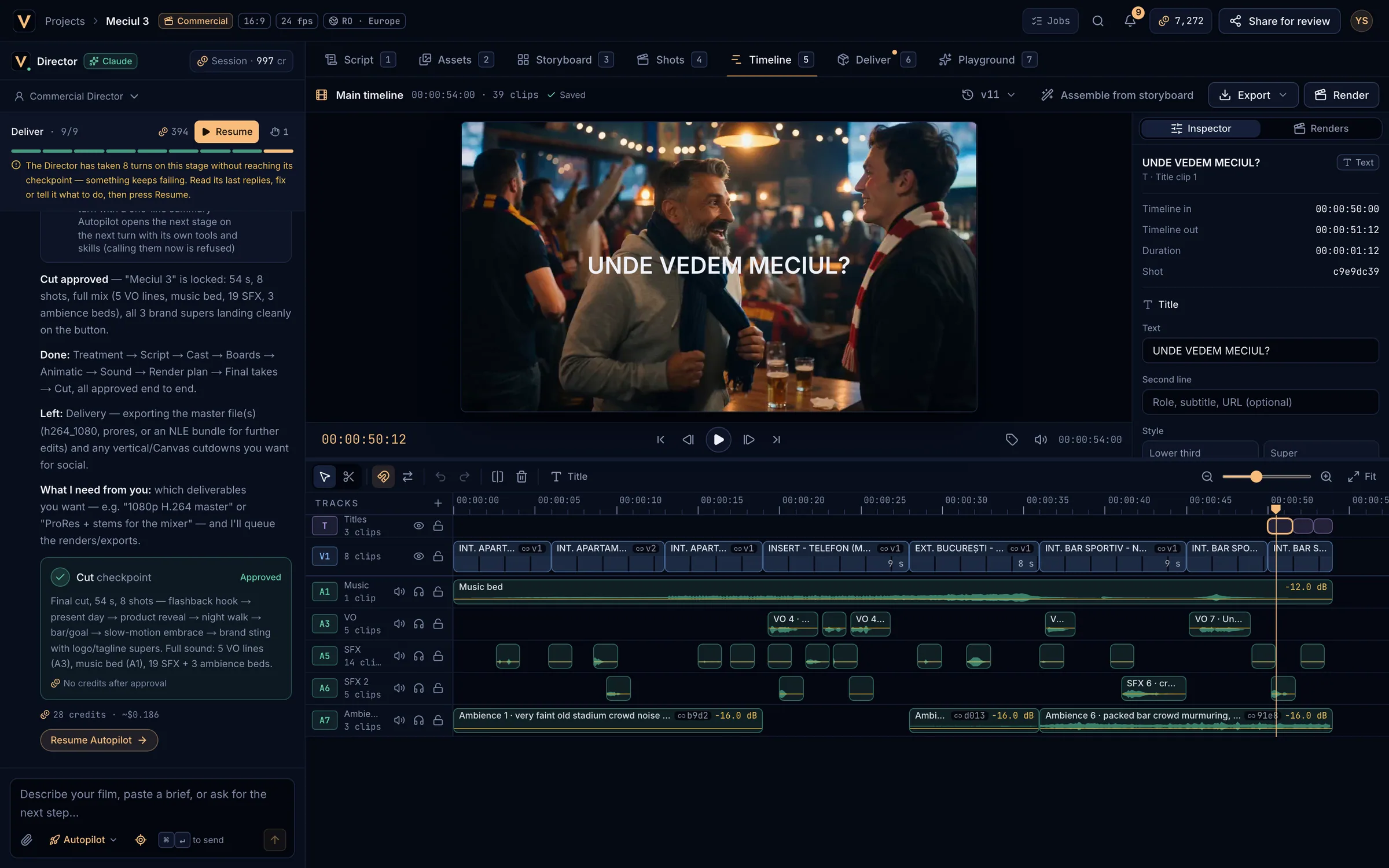
- Every clip: timeline in and out, duration, source in, shot and shot version, and Online or Offline.
- Audio clips: Gain from −24 to +12 dB (0 dB resets).
- Dissolves: Cross dissolve out with its length, and Remove.
- Vertical framing (projects wider than 9:16): where the 9:16 crop sits. Auto follows the subject in a vertical render; drag to fix it, or add keyframes with Key at playhead.
Titles and captionsLink to Titles and captions
- Title (
T) adds a lower third on the T track at the playhead (it needs a gap of at least half a second). - Edit it in the Inspector: Text and Second line, Style (Lower third, Super, Title card, End card), Align, Position, Fade in / out (0–2 s) and its in and out. The viewer previews as you type.
- Vertical projects can carry word-by-word captions on T2 (Captions); edit their text and timing in the Inspector.
SoundLink to Sound
| Track | Role |
|---|---|
| A1, A2 | Music |
| A3, A4 | VO |
| A5, A6 | Sound effects |
| A7, A8 | Ambience |
- The takes’ own sound rides on V1 as the effects bed.
- Music dips automatically under the VO and comes back after each line (in the preview and the render alike).
- Mute, solo, hide and lock on the track headers are viewing aids for this session; they are not saved.
- Add tracks with + next to Tracks.
VersionsLink to Versions
- Every edit, undo and redo saves a new version (Saved). The version picker lists them with what changed.
- Opening an older version is read-only: Back to vN (current) (
Esc) or Restore this version (saved as a new version, undoable). - If the Director or another tab saved a newer version while you were editing, a vN is available — Load chip appears.
Renders and exports from the TimelineLink to Renders and exports from the Timeline
- Render opens the Renders panel: Proxy (720p review copy), Animatic (1080p with timecode) or ProRes HQ for finishing. Render vN renders the current version. Ready renders have Open and Download.
- Export downloads the cut for an NLE: Premiere Pro XML, Final Cut Pro XML or OpenTimelineIO. For media and stems, use Deliver.
- Rendering, like exporting, is free.
Timeline shortcutsLink to Timeline shortcuts
| Space | Play / pause |
| JKL | Shuttle reverse / stop / forward (repeat for up to 8×) |
| ←→ | One frame back / forward |
| ⇧←→ | One second back / forward |
| ↑↓ | Previous / next edit |
| HomeEnd | Start / end |
| S | Split at the playhead |
| V | Selection tool |
| B | Blade tool |
| N | Snapping on / off |
| T | Add a title |
| ⌫ | Delete the selection |
| ⇧⌫ | Ripple delete |
| ⌘Z | Undo |
| ⇧⌘Z | Redo (also ⌘Y) |
| +− | Zoom in / out |
| \ | Fit the timeline |
| Esc | Clear the selection |
Click the timecode to type a jump (00:00:05:12, 2.5s or +12f). On windows narrower than 768 px the Timeline is read-only.